Setting the Caller ID and 911 for all outbound calls
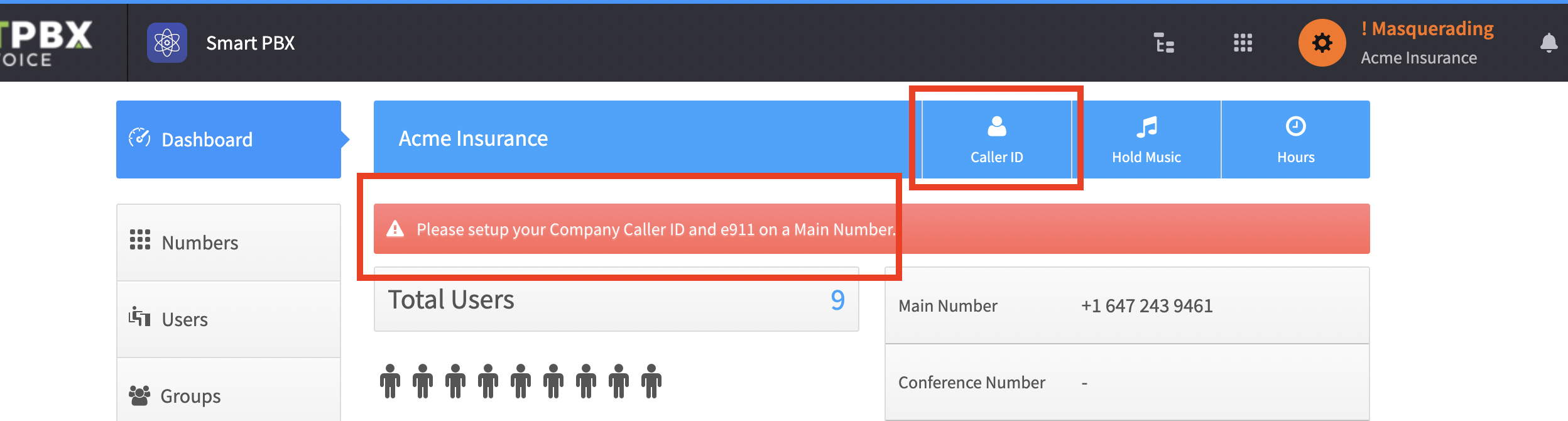
If you have not set up an outbound caller ID, you will see a red banner asking you to do so.
-
Open Smart PBX > Dashboard and choose Caller ID
-
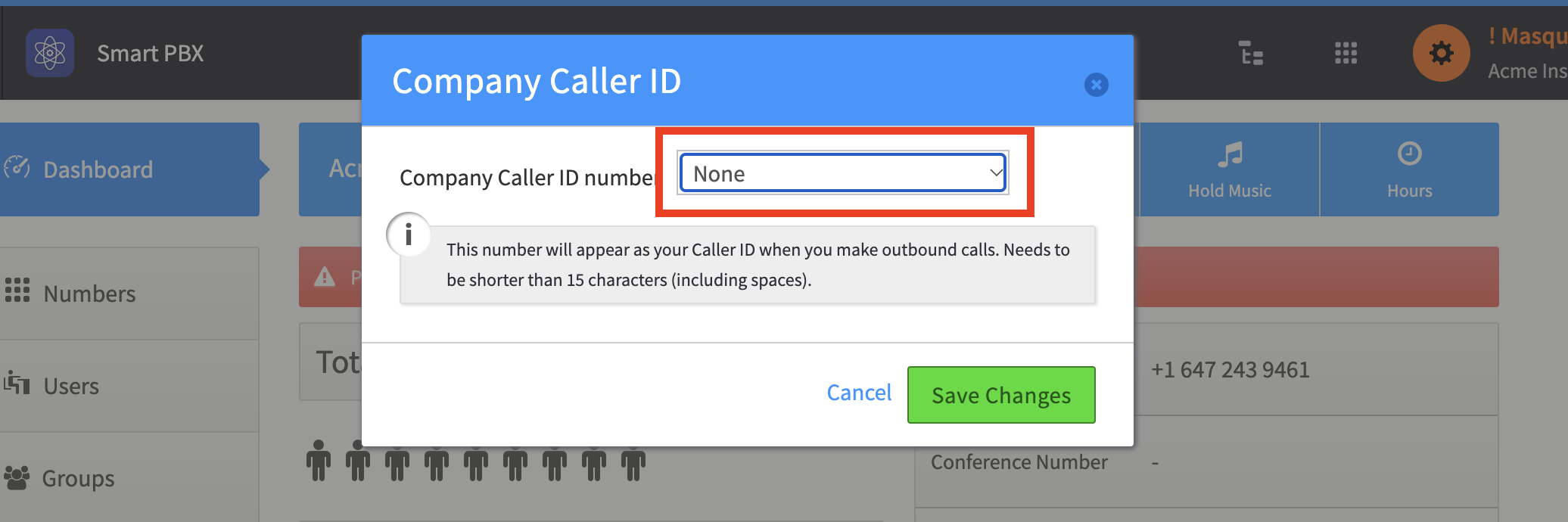
Choose the phone number that you want to use as the outbound caller ID
-
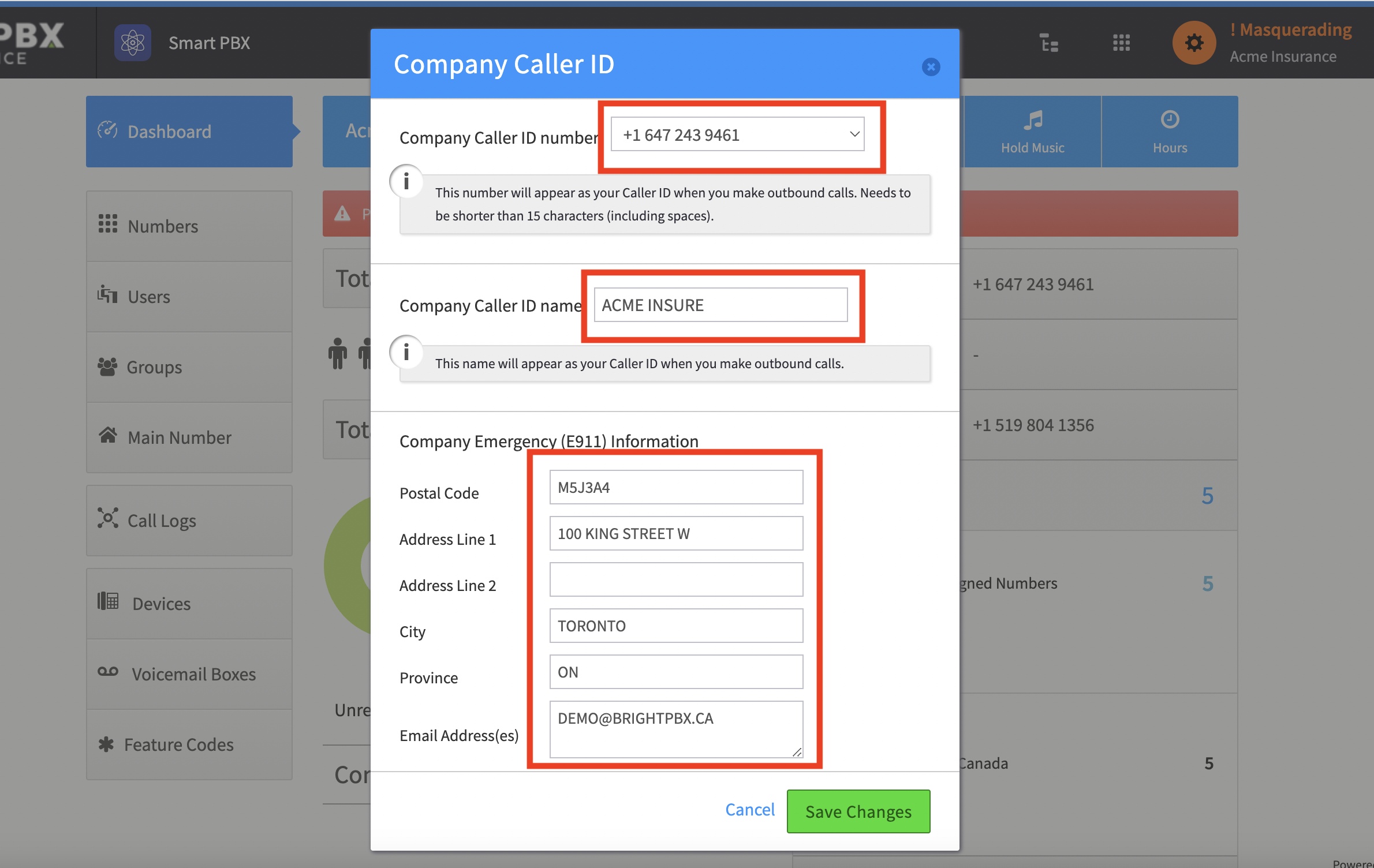
Fill out the Caller ID Name and the E911 info. Both are required for outbound calls to function correctly.
-
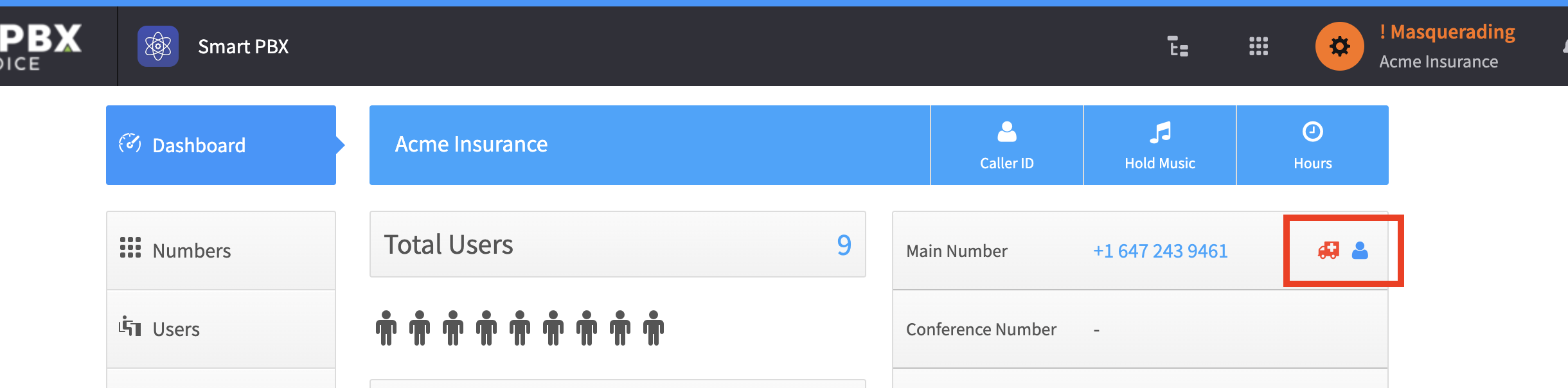
Click Save Changes. The red banner disappears, and two icons confirm that you have supplied the caller ID and E911 information.
Related
Section titled “Related”- Setting the main company inbound number
- Adding E911 to individual DIDs — when users have their own caller IDs