Setting up one-way paging
One-way paging lets you make announcements through multiple office phones at once. When you use paging, you can speak into your phone and your message will play through the speakers of other phones in your office.
This is useful for quick announcements, emergencies, or anytime you need to reach a group of people right away. When someone makes a page, the phones will automatically answer and play the message — the people receiving the page cannot talk back.
Create the page group
Section titled “Create the page group”-
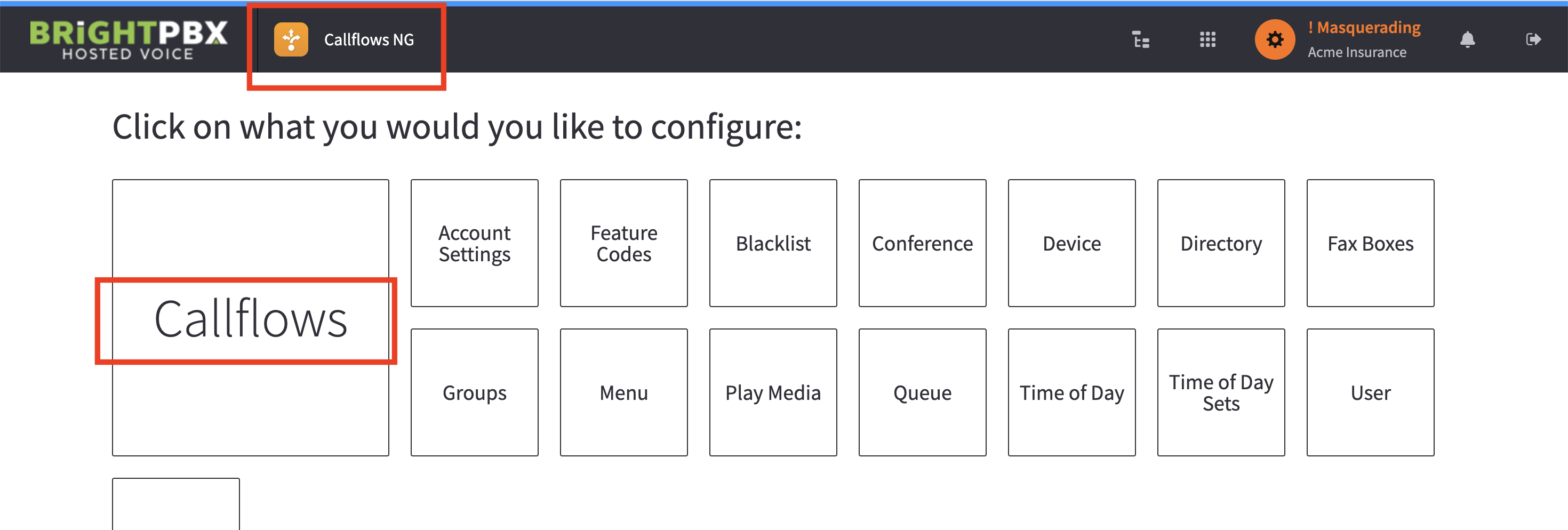
Open the Callflows NG app, and choose Callflows.
-
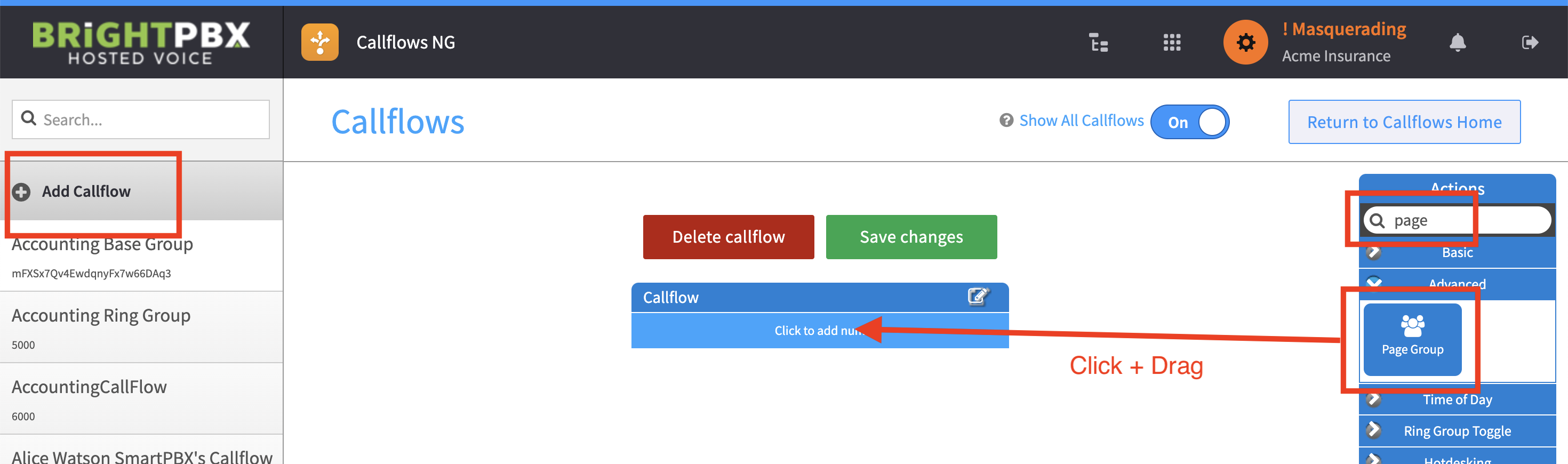
From the left menu, choose Add Callflow.
-
From the toolbox on the right, type “page” in the search box.
-
Click and drag the Page Group widget on top of the Callflow widget.
-
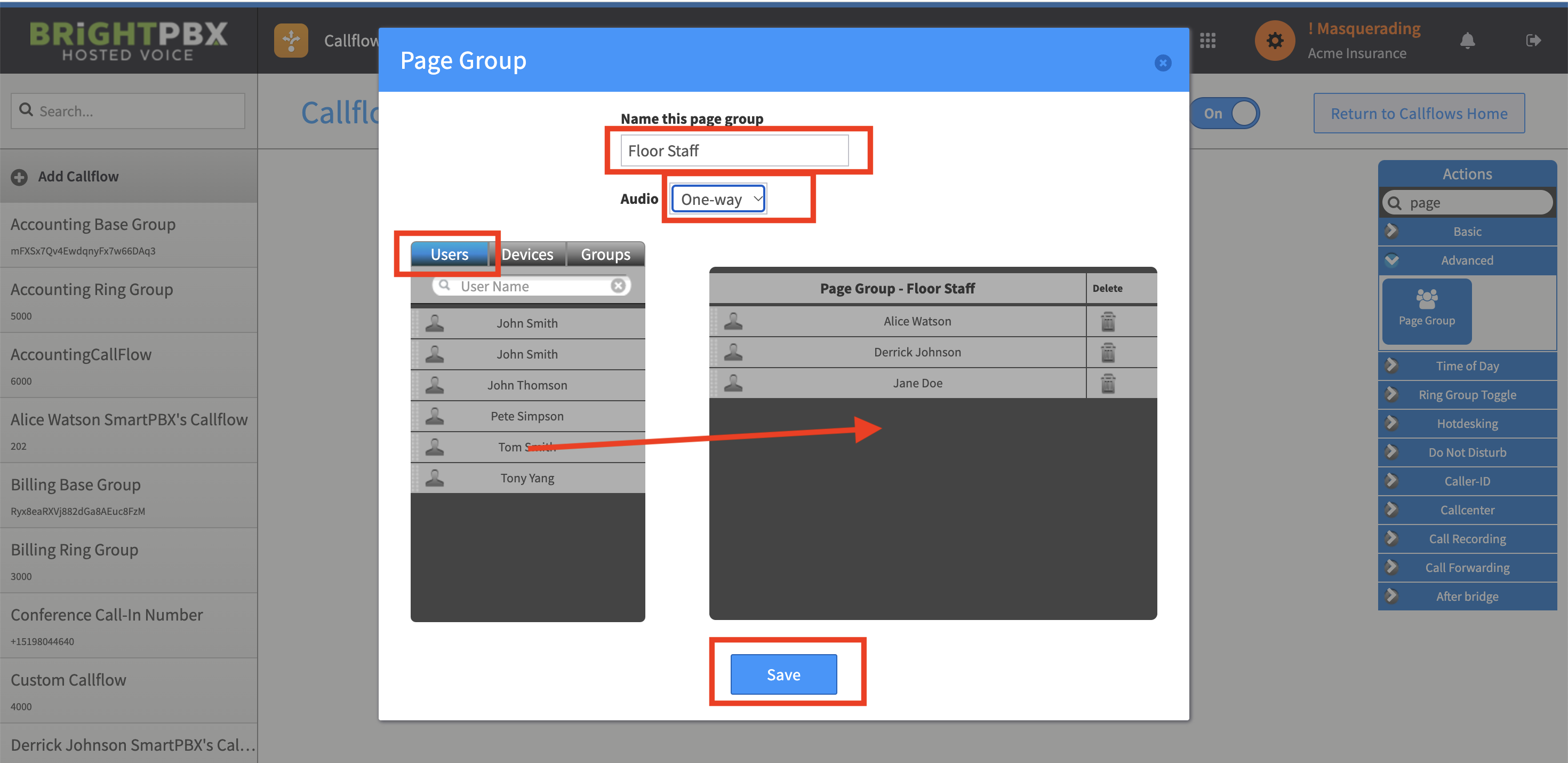
A popup will open. Provide a descriptive name for the group.
-
Set Audio to One-way.
-
Select the Users tab, and drag users to the paging group on the right.
-
Once completed, click Save.
Name the callflow and assign an extension
Section titled “Name the callflow and assign an extension”-
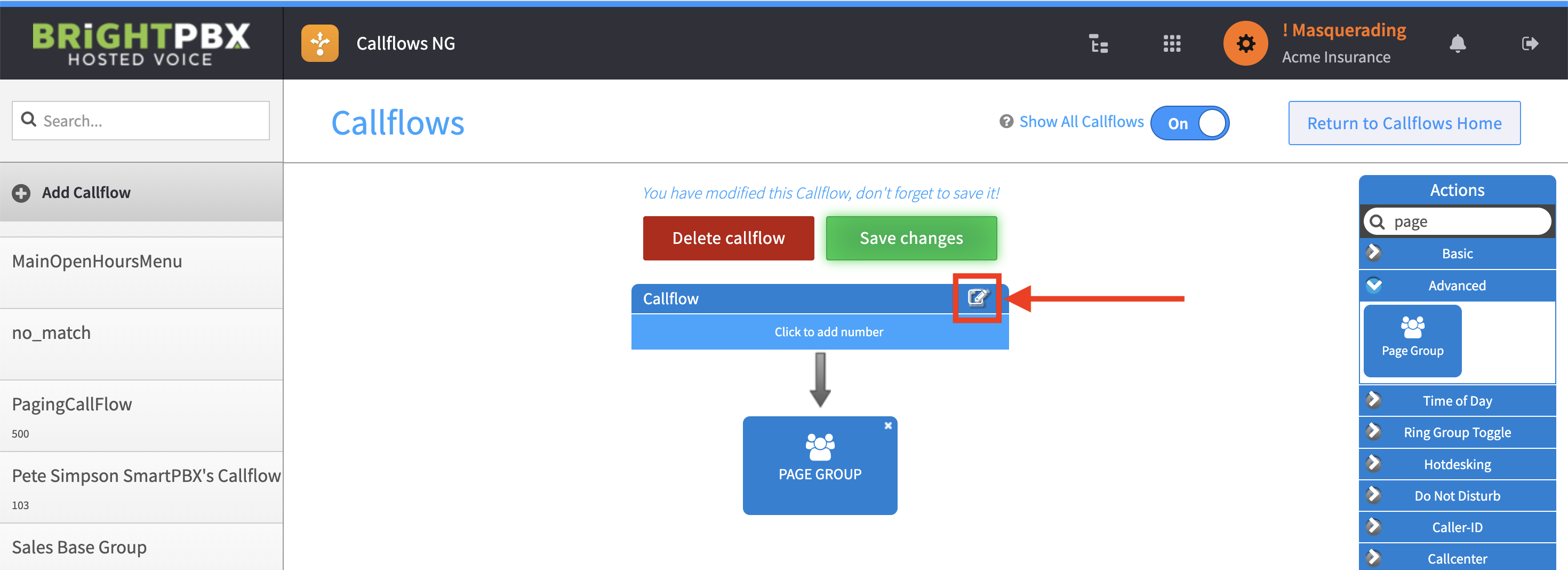
Click the edit icon of the Callflow.
-
Provide a descriptive name, and click Save.
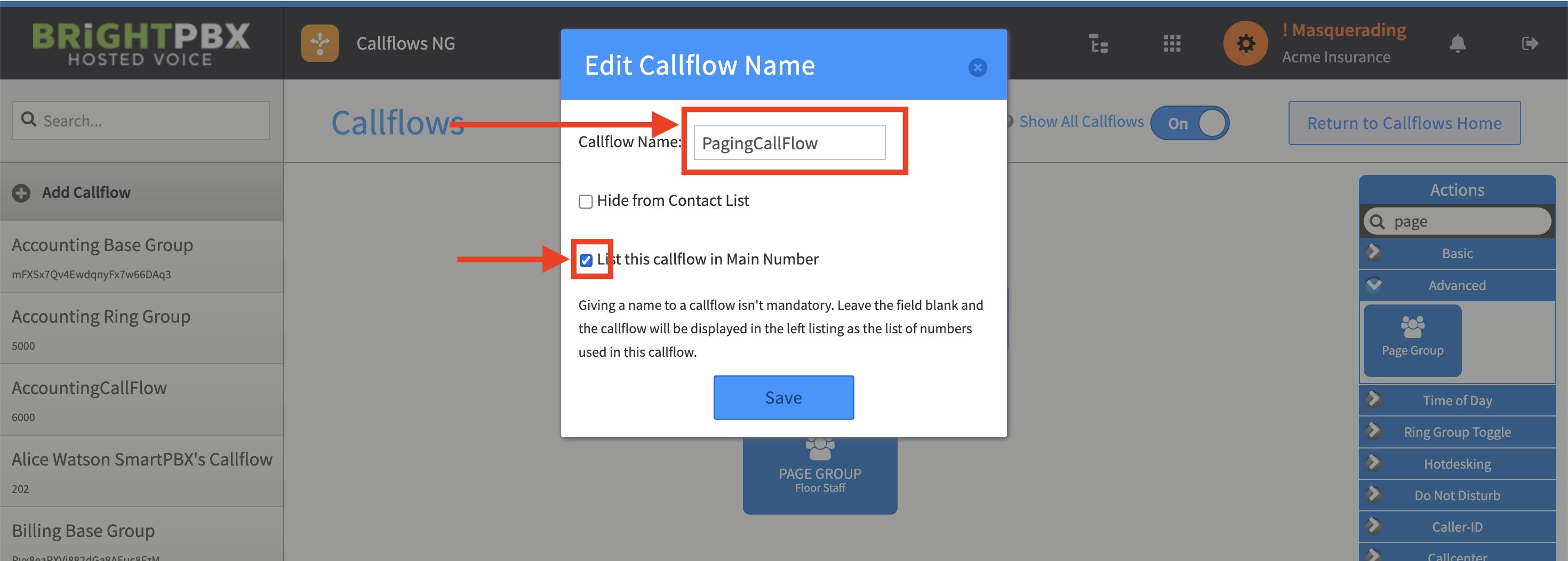
-
Click where it reads “Click to add number”.
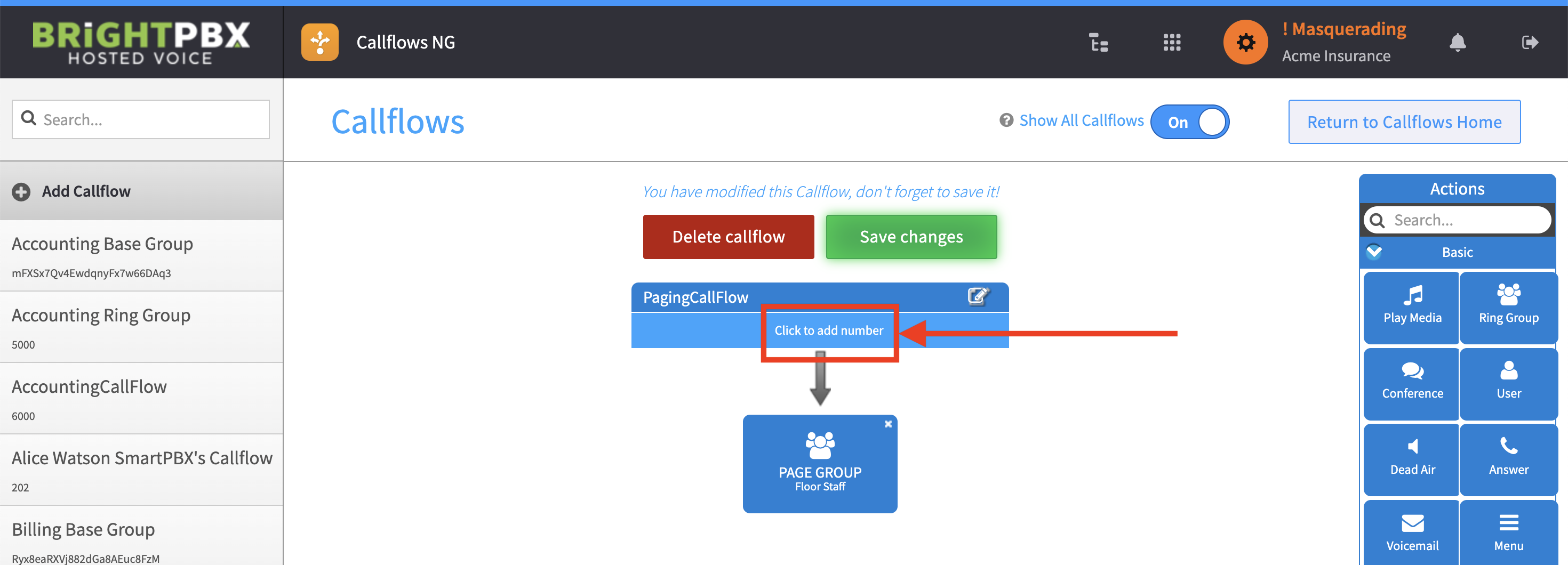
-
Choose Extension, provide your desired extension for the group, and click Save.
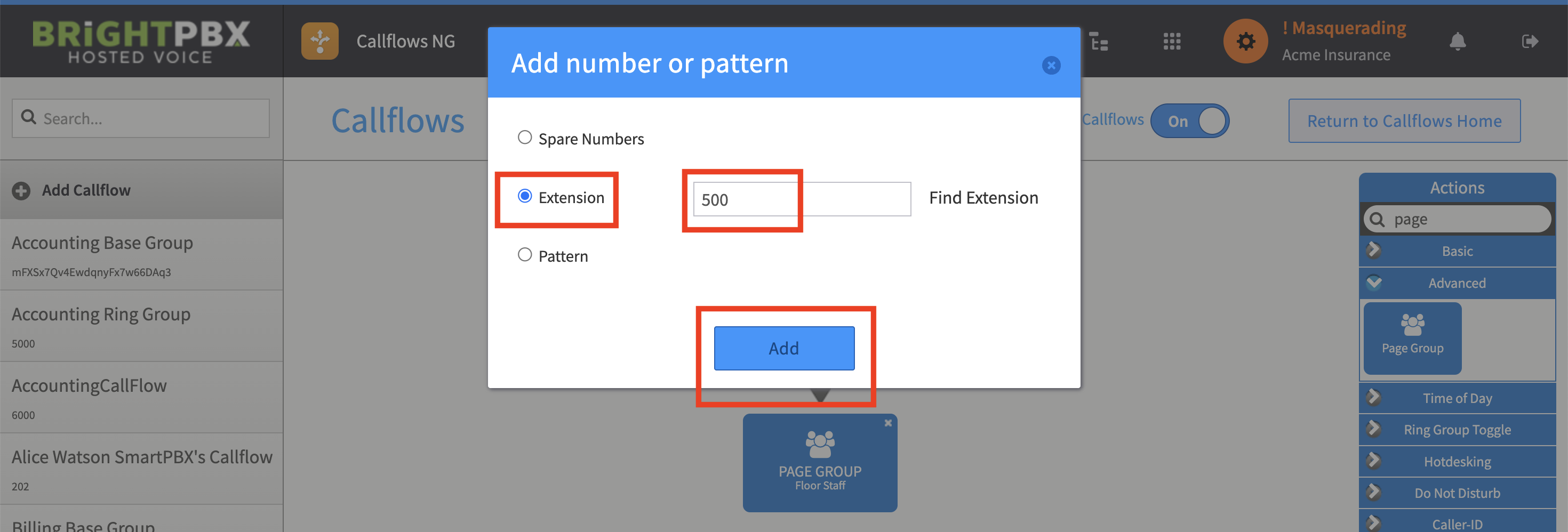
-
Finally, click Save changes to complete configuration.
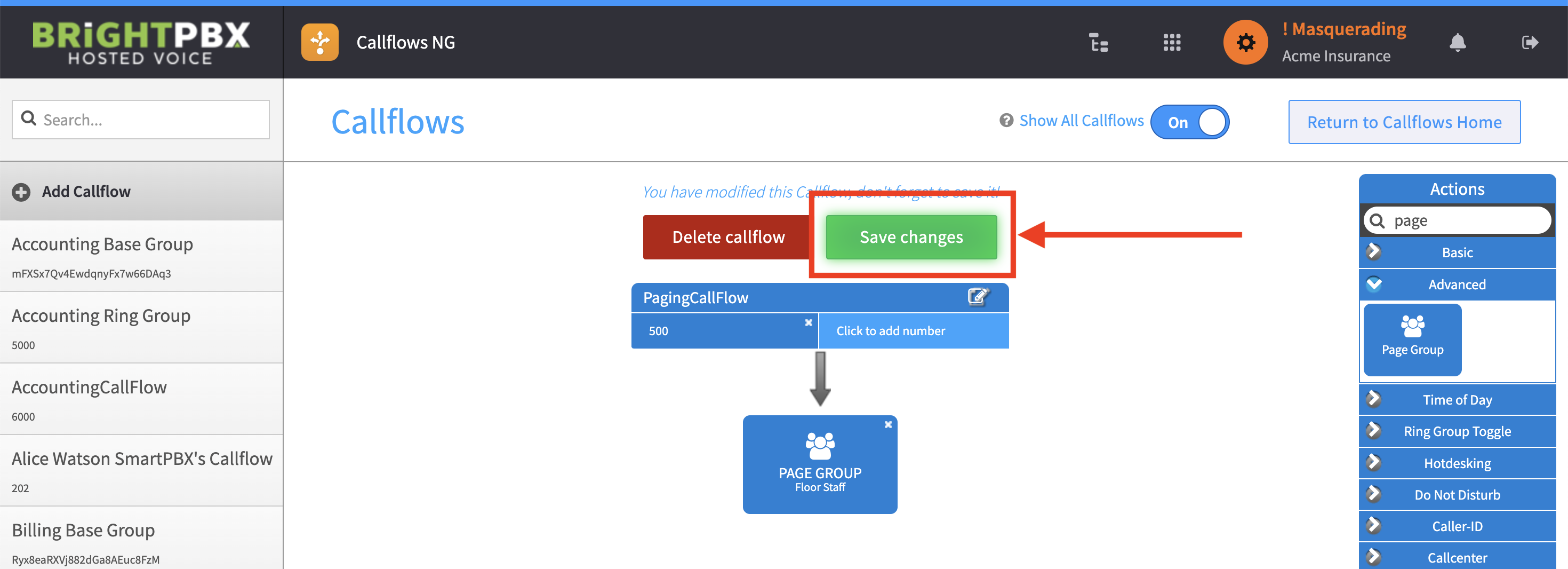
You can now dial the extension you entered in these steps to reach the paging group.