How do I allow my customers to log into the portal to administer their accounts?
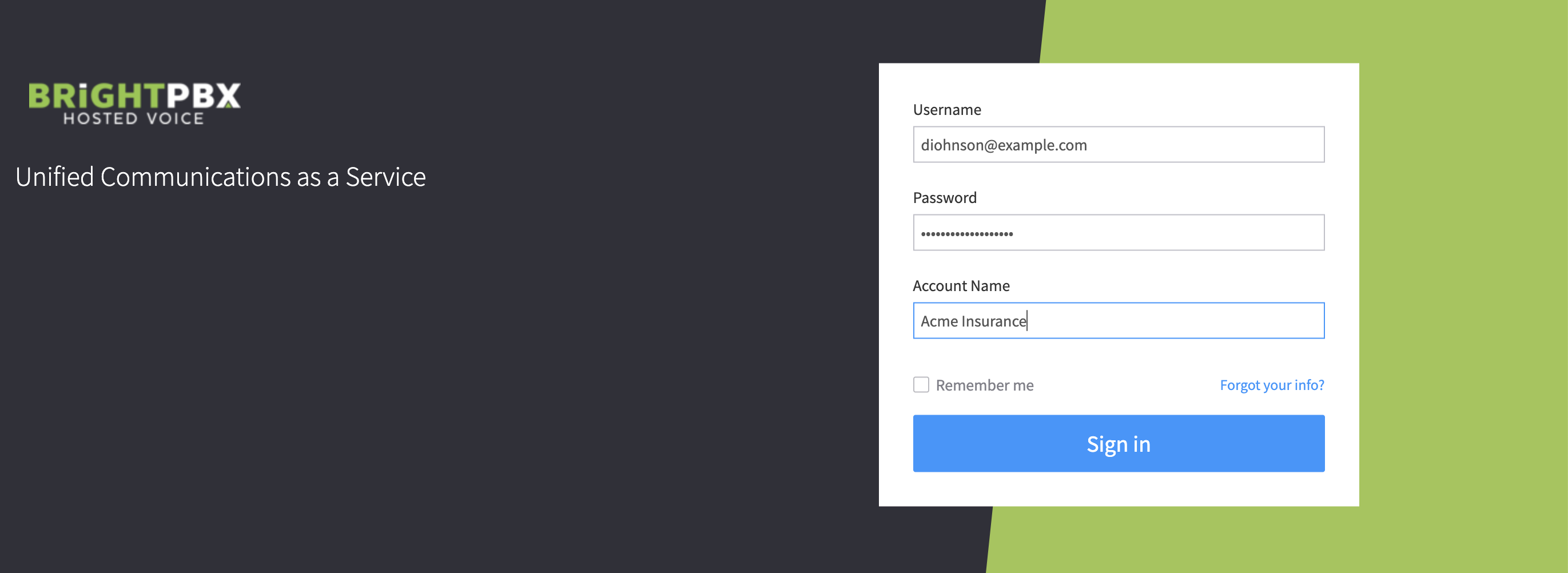
Customers log into the same portal that you use. They sign in with their own credentials — email, password, and account name.
Finding a user’s login details
Section titled “Finding a user’s login details”-
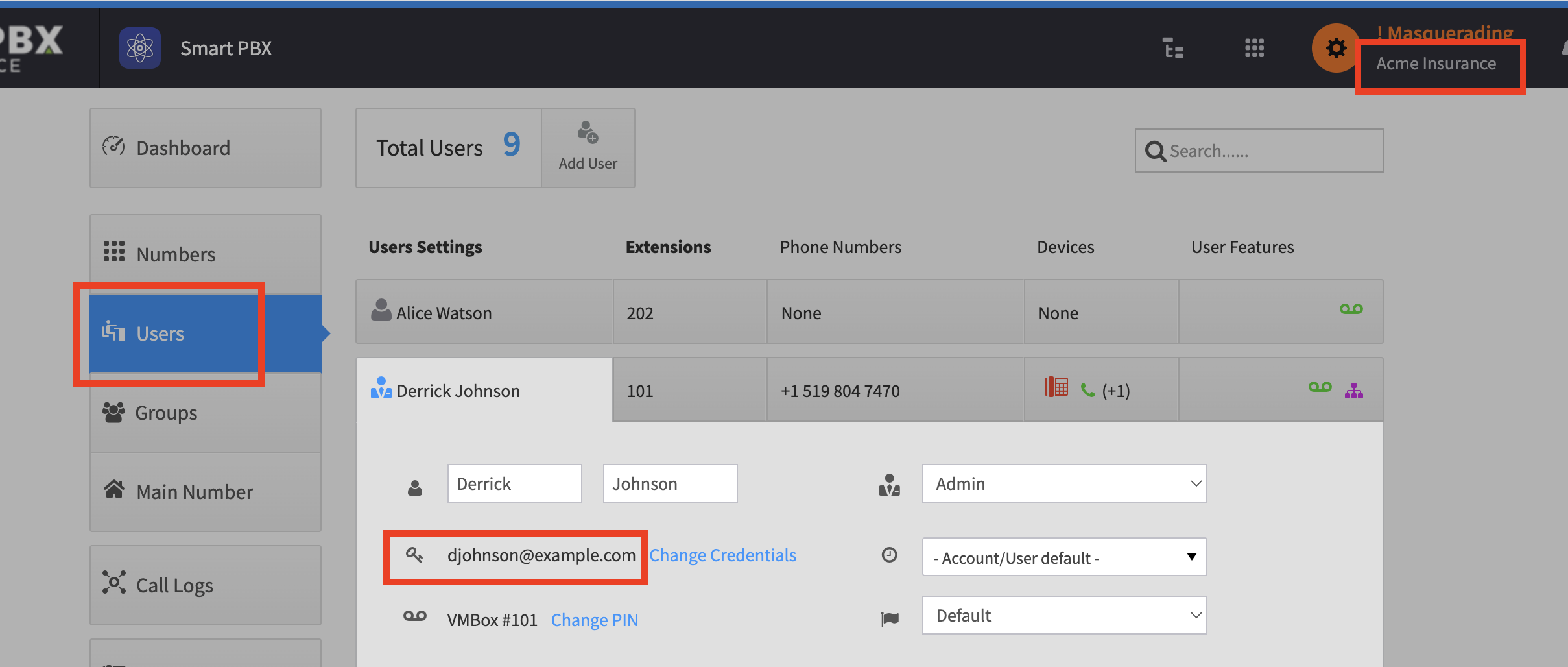
Masquerade the account that you wish to allow portal access for.
-
Go to Smart PBX > Users, and click on the specific user to reveal the email address they are registered with. This is the email they will use to log in, along with their password and the account name shown in the top-right corner.
If you do not recall their password, use the Change Credentials link to update it.
-
Once they have these three pieces of information, they can visit our portal and log in.
Repeat for each user you want to provide access to.
Things to consider
Section titled “Things to consider”-
You may want to disable certain apps and only provide access to a select few. See Enabling apps for sub-accounts for details.
-
You may not want to use a BrightPBX branded interface. To set up a custom portal with your own URL (e.g.
portal.mydomain.com), logo and colours, contact support@brightpbx.ca to arrange it.