Configuring the Caller ID Number for a user that's separate from the main company's number
If a dedicated caller ID is set, it always takes precedence over the main company number.
-
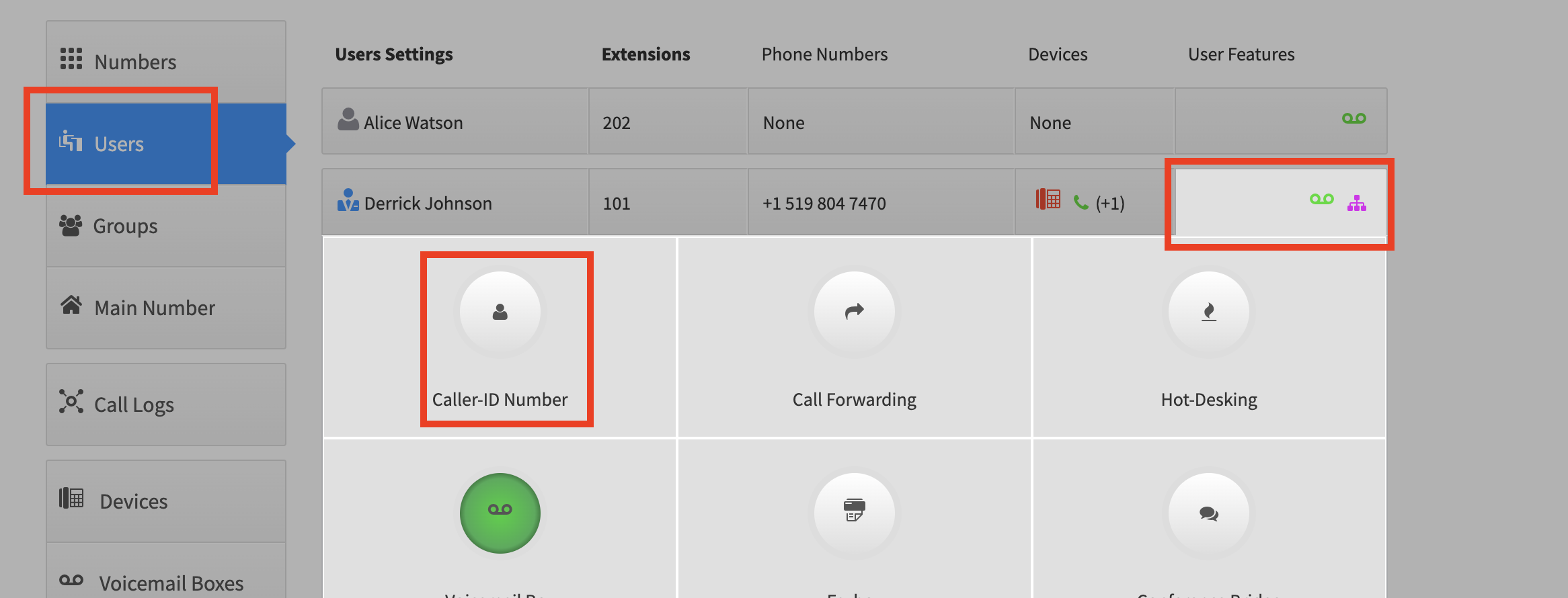
Once the dedicated DID is set, open Smart PBX and choose Users
-
Click the User Features box for the user you want to modify
-
Click Caller-ID Number
-
Toggle the switch on, verify the DID, and save your changes
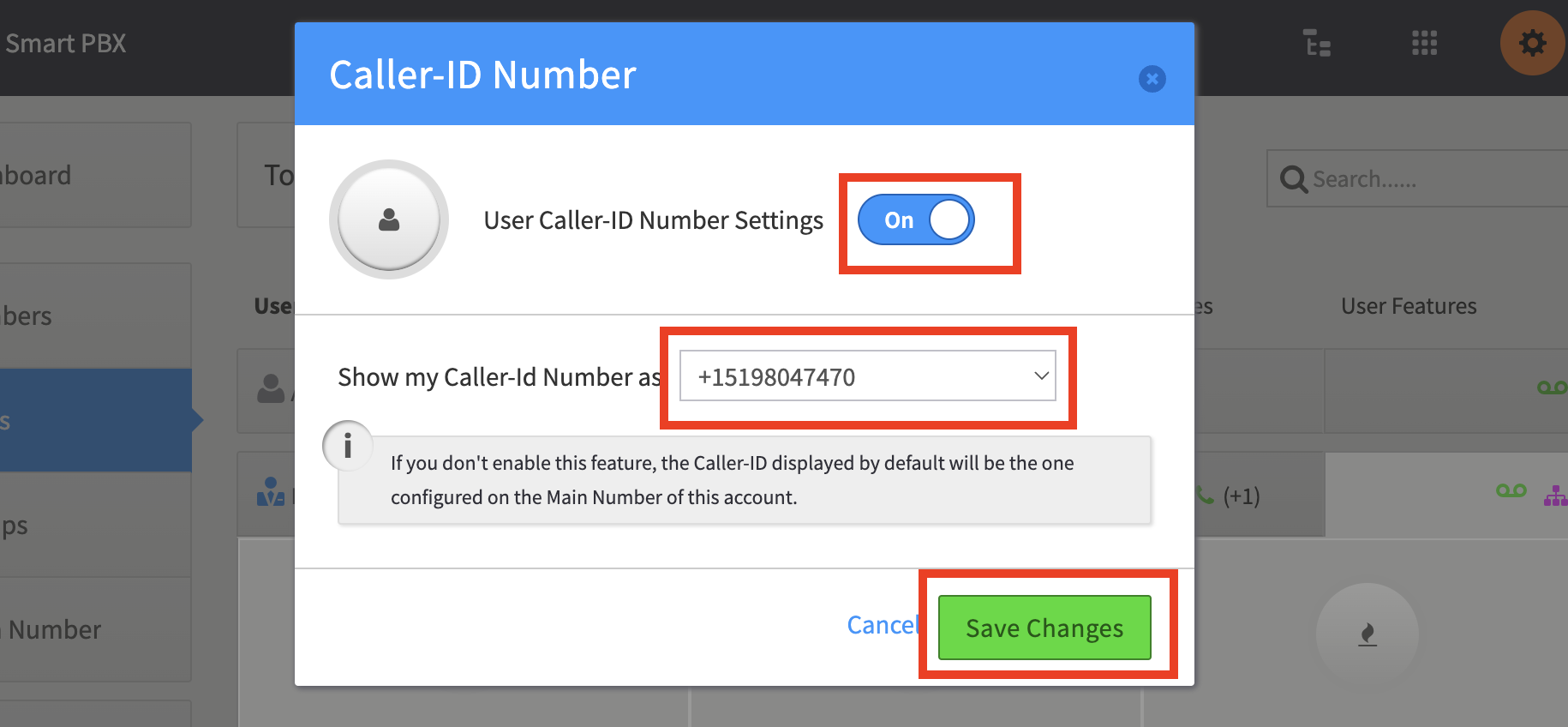
Now when this user makes a call, the receiver sees the user’s dedicated number on their call display instead of the main company number.