Enabling remote logging on a Polycom
Remote logging sends the phone’s own logs to our syslog server, so Support can see what the device saw during a problem call.
Configure syslog
Section titled “Configure syslog”-
Log into your Polycom’s configuration page.
-
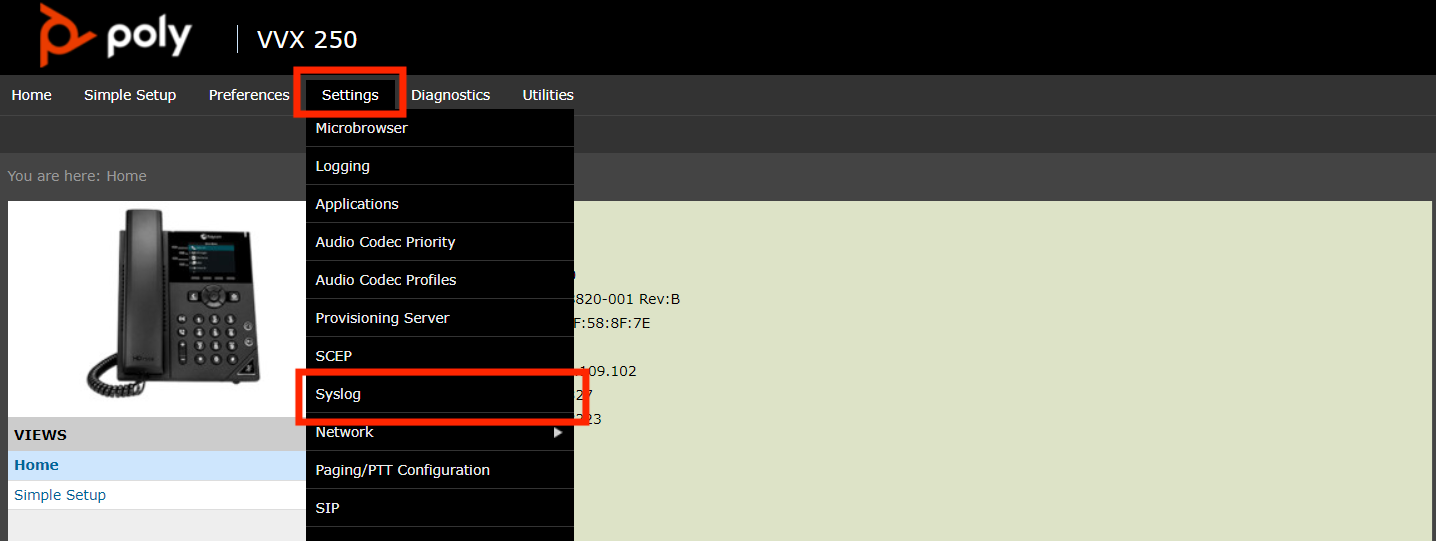
From the Settings menu, choose Syslog.
-
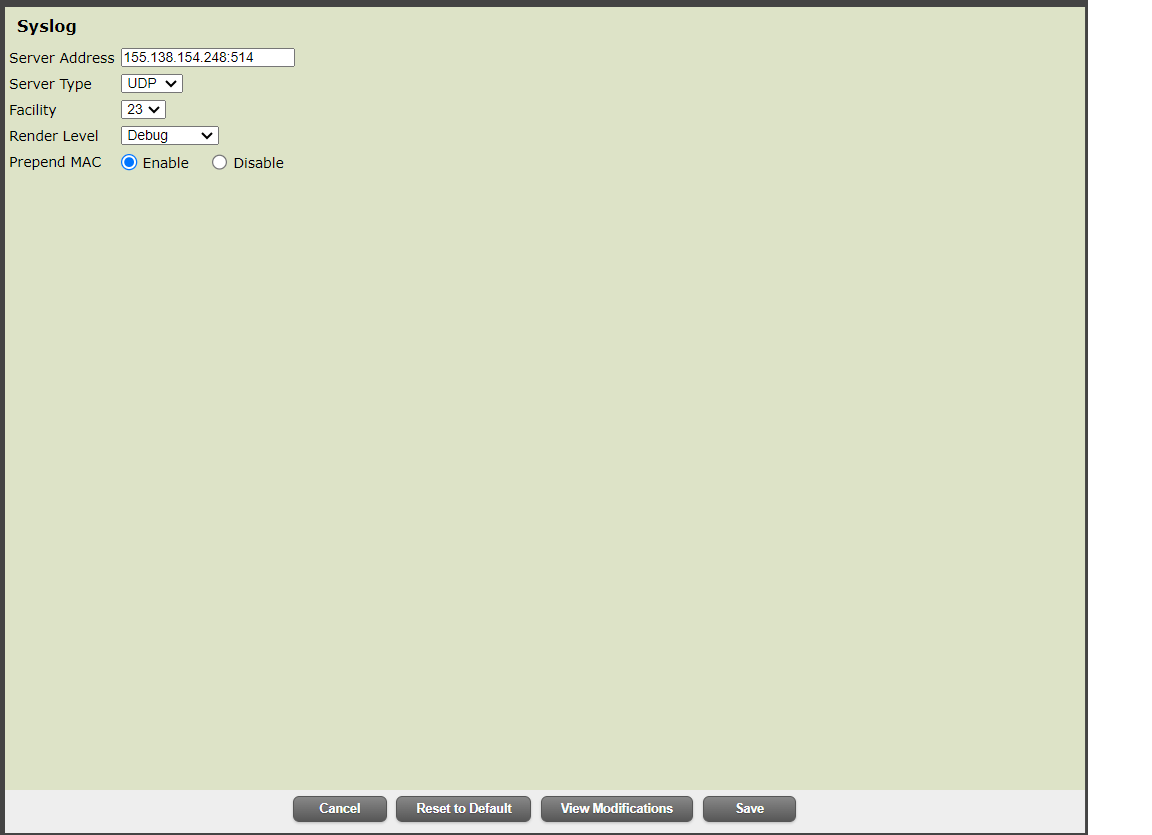
Fill in each field as follows, and click Save.
| Field | Value |
|---|---|
| Server Address | 155.138.154.248:514 |
| Server Type | UDP |
| Facility | 23 |
| Render Level | Debug |
| Prepend MAC | Enable |
Raise the log level
Section titled “Raise the log level”-
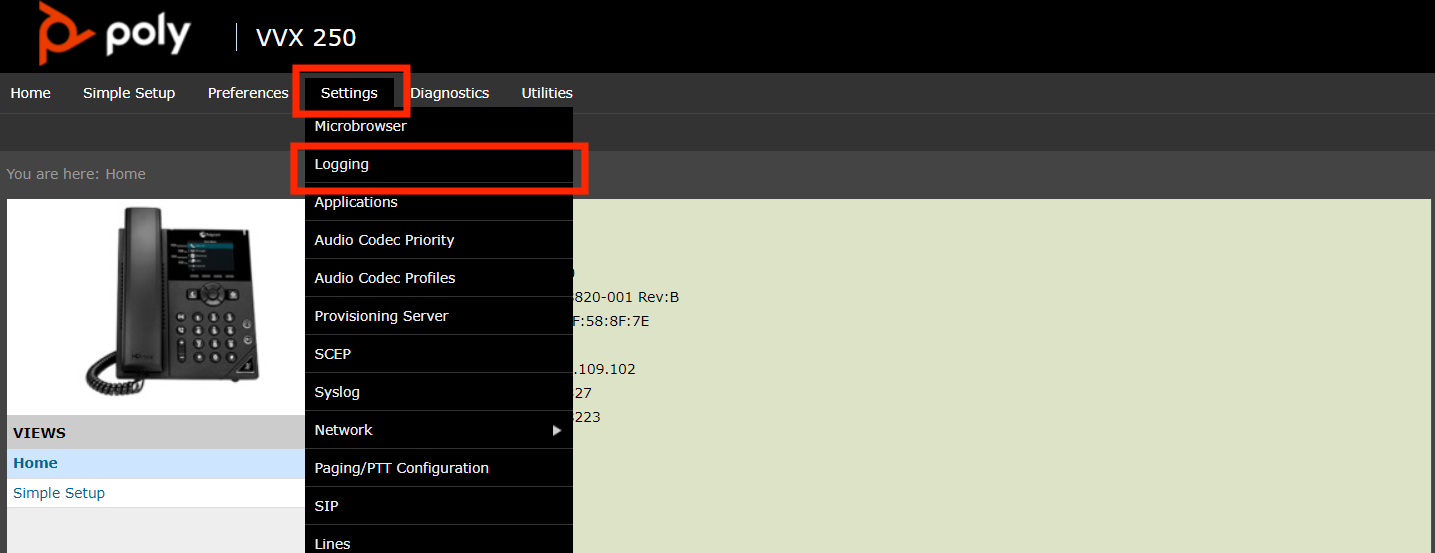
From the Settings menu, choose Logging.
-
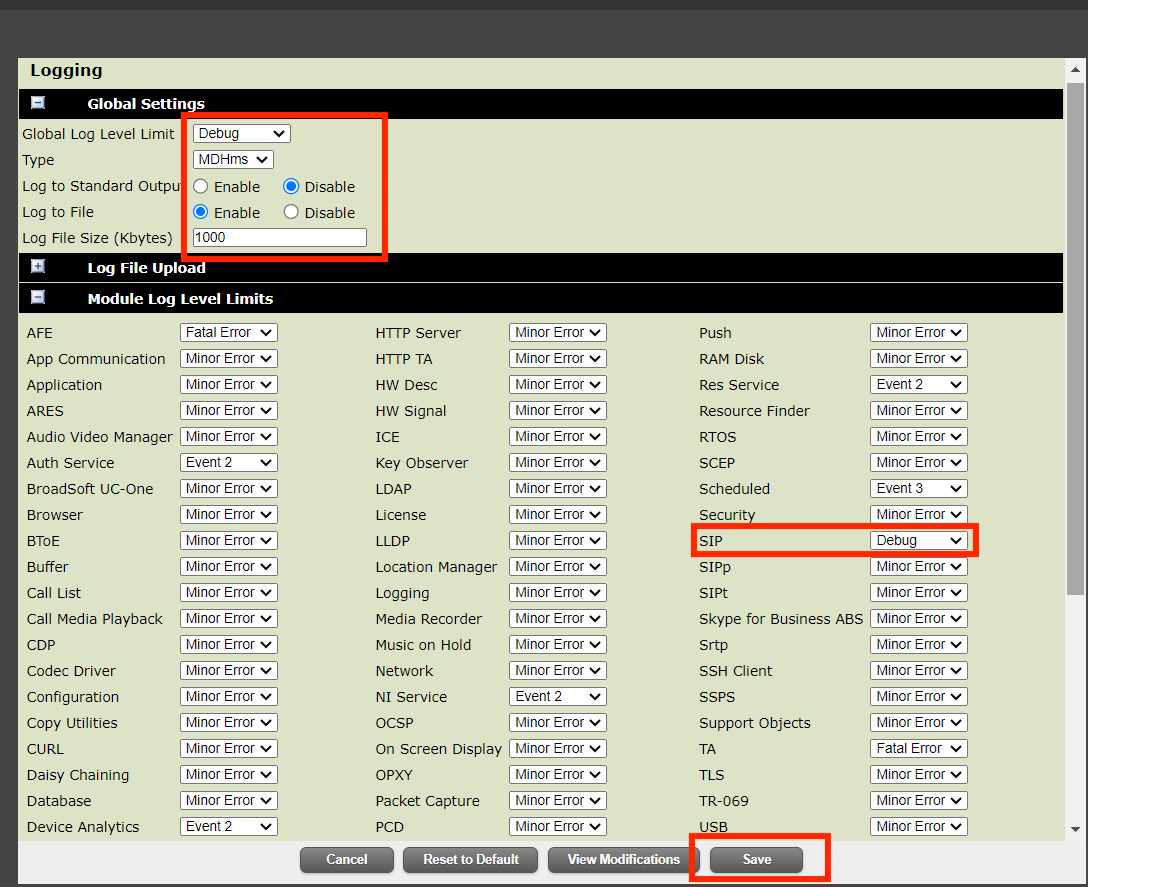
In the Global Settings section, set:
| Field | Value |
|---|---|
| Global Log Level Limit | Debug |
| Type | MDHms |
| Log to Standard Output | Disable |
| Log to File | Enable |
| Log File Size (Kbytes) | 1000 |
-
In the Module Log Level Limits section, set SIP to Debug.
-
Once complete, choose Save from the bottom.
Once logging is enabled, reproduce the issue and then report the call to tech support so we can correlate the logs with the affected call.