Adding users to the PBX
Create the user
Section titled “Create the user”-
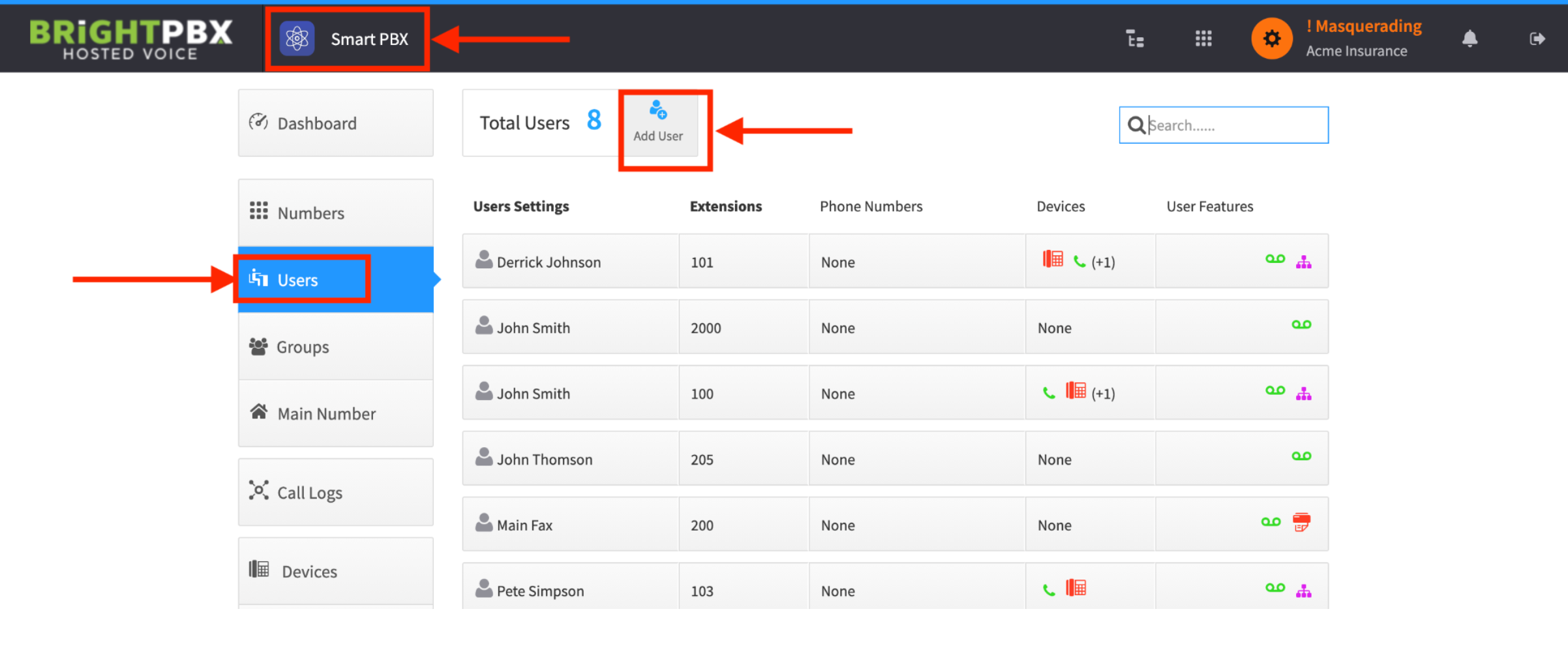
Open the Smart PBX app, click Users on the left, and then Add User toward the top
-
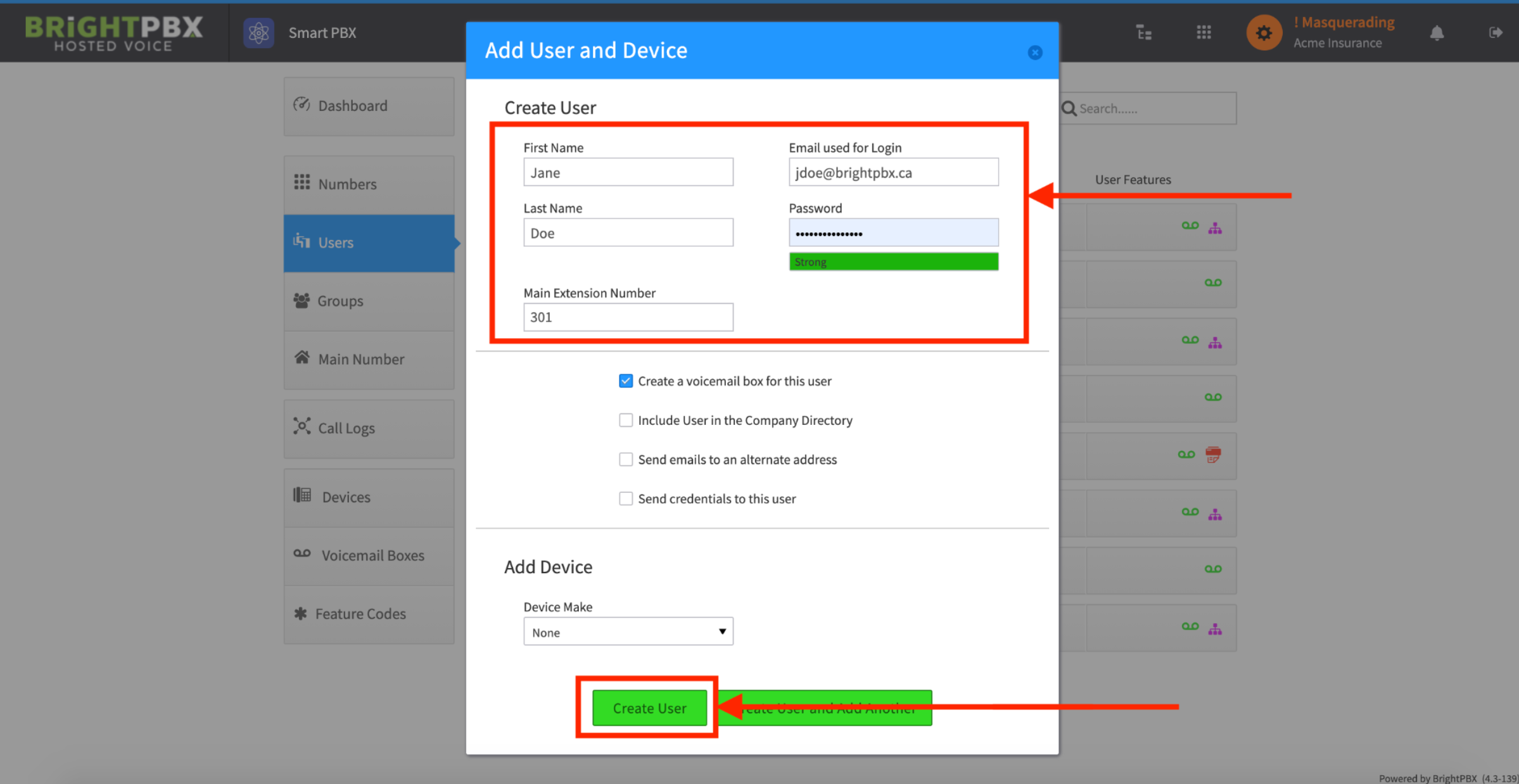
Enter the user details and click Create User
-
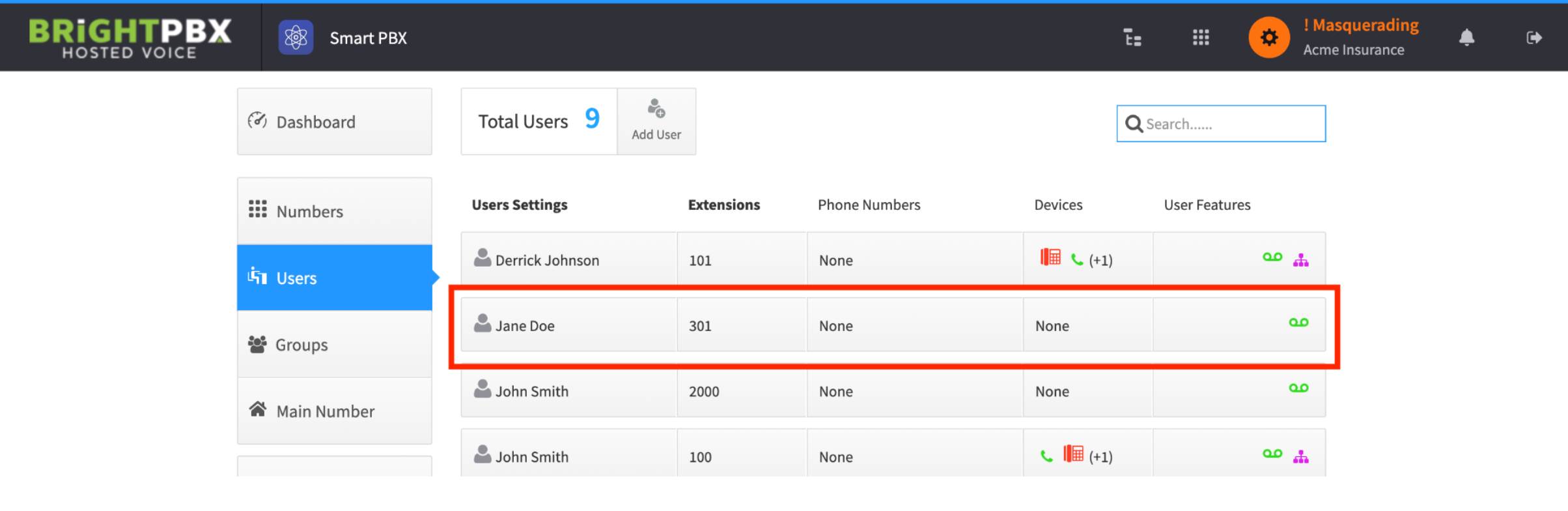
Once the user is created, you will see them listed in your user list. Under the Devices column you will see None, since no devices are associated with them yet.
Add a device
Section titled “Add a device”-
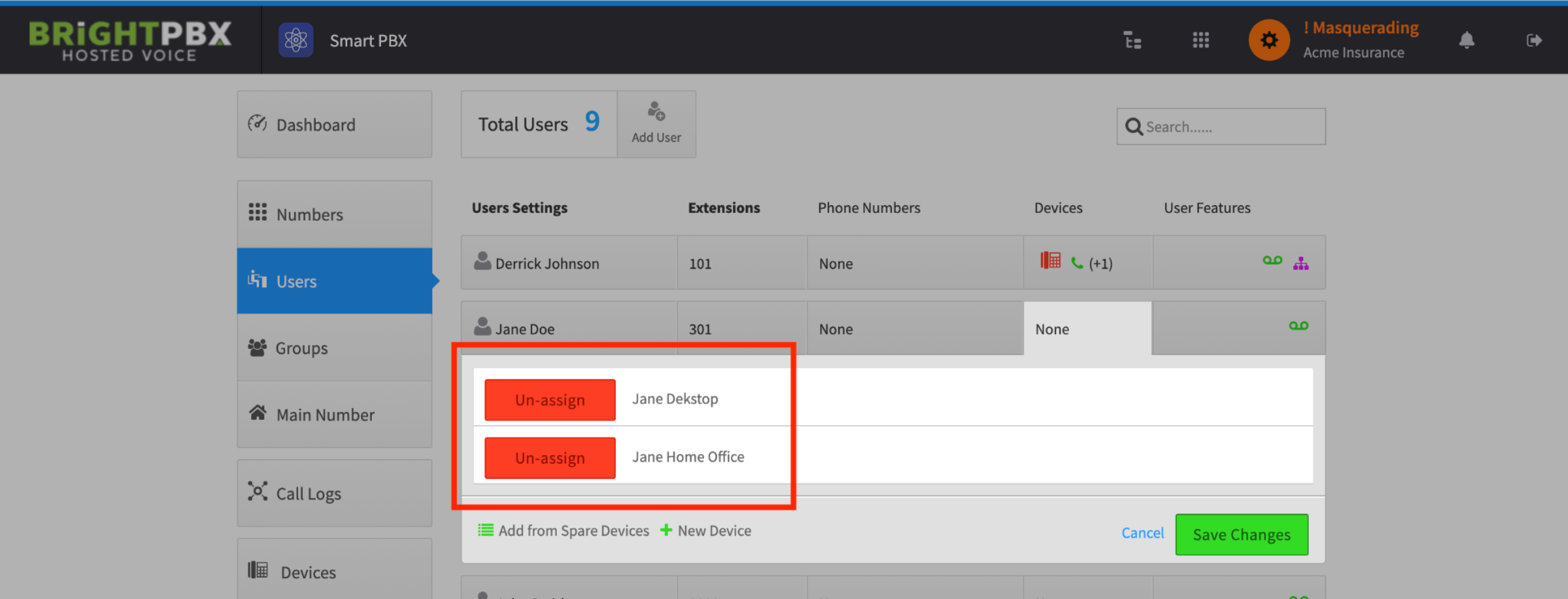
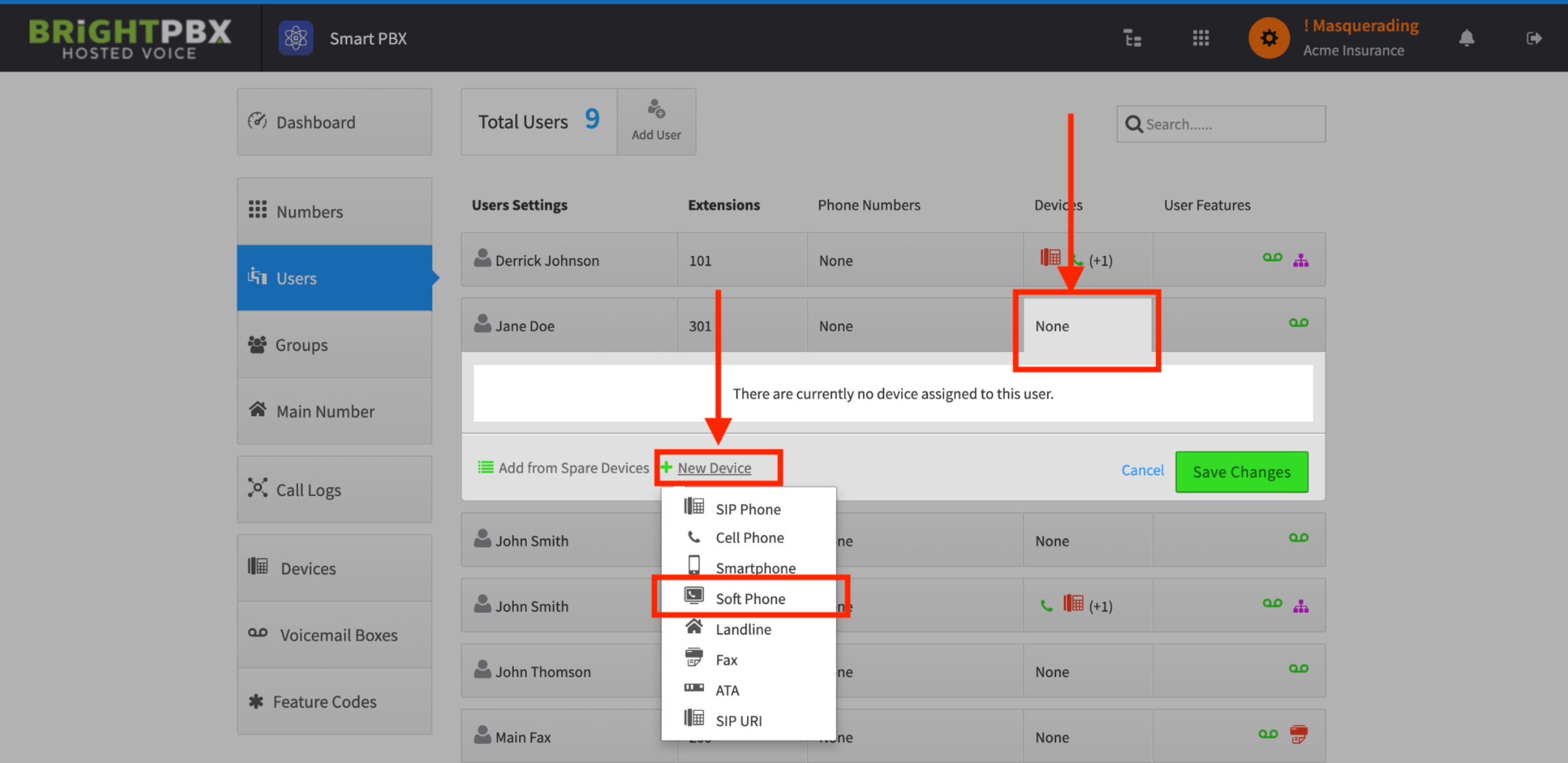
Click None to open the devices for the user, then click Add New Device
-
When the device type list opens, choose Soft Phone for this example
-
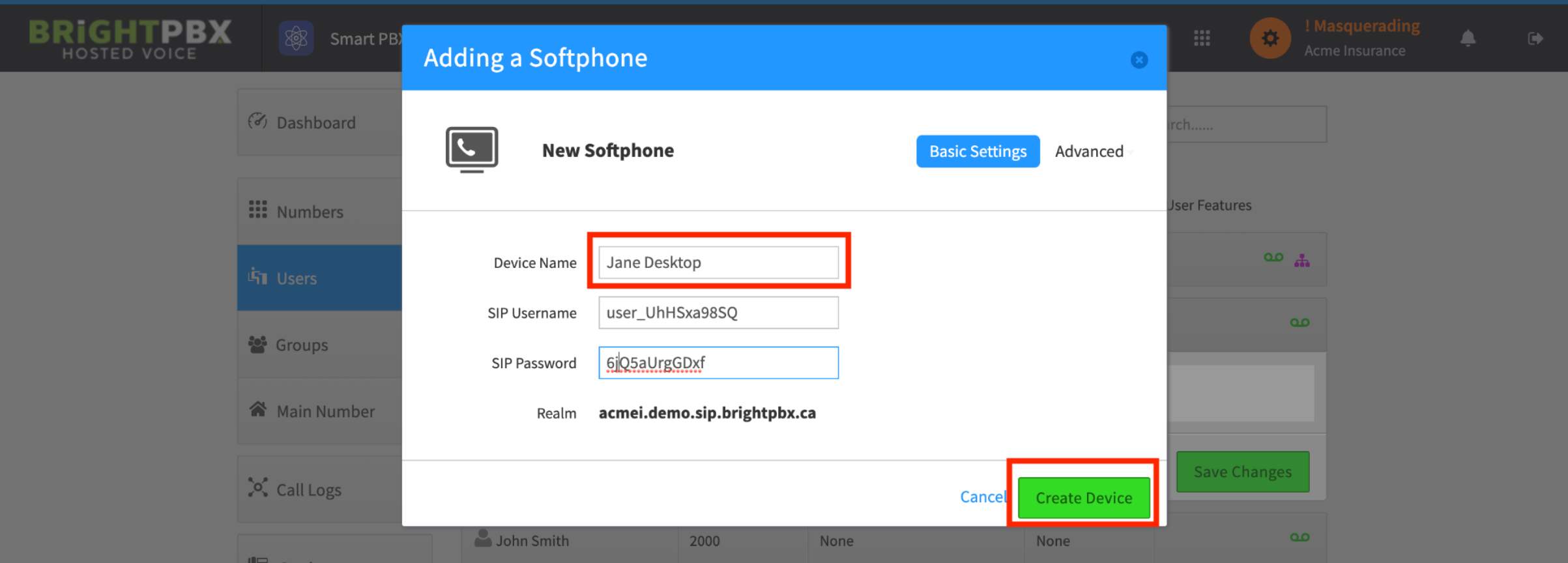
Enter any name of your choice, then click Create Device
-
You will see the device is now listed
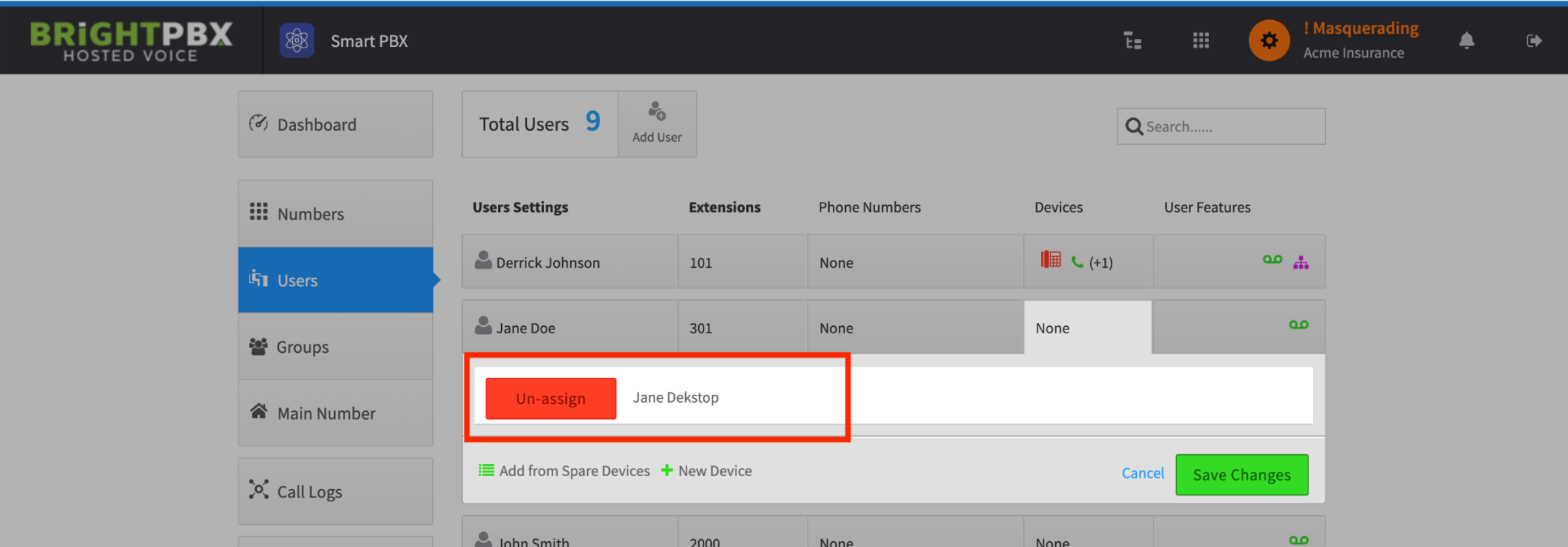
Optionally, you may add more devices for this user using the same process.