Configuring a sidecar with Advanced Provisioner
-
First, ensure the sidecar is correctly attached to the device itself. These steps will not work otherwise.
-
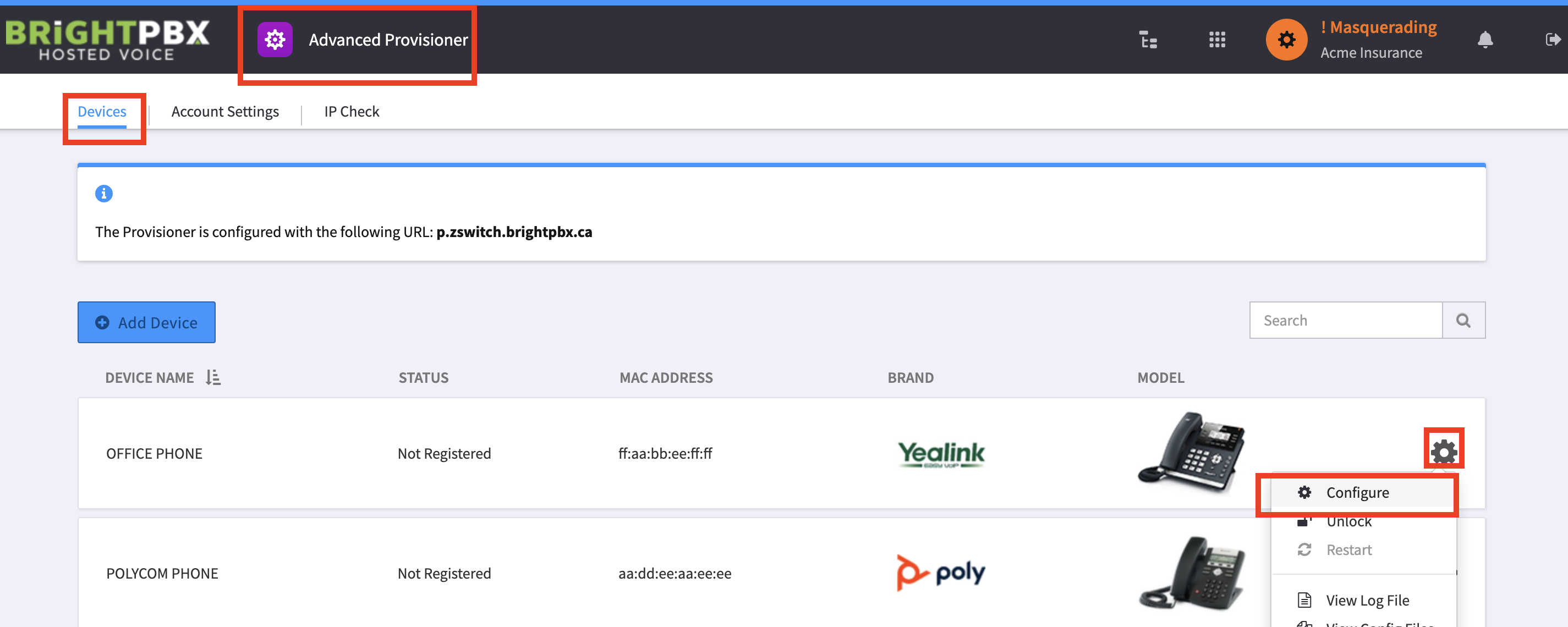
Open the Advanced Provisioner app, and choose Devices
-
Find your device, click the gear icon, and choose Configure
-
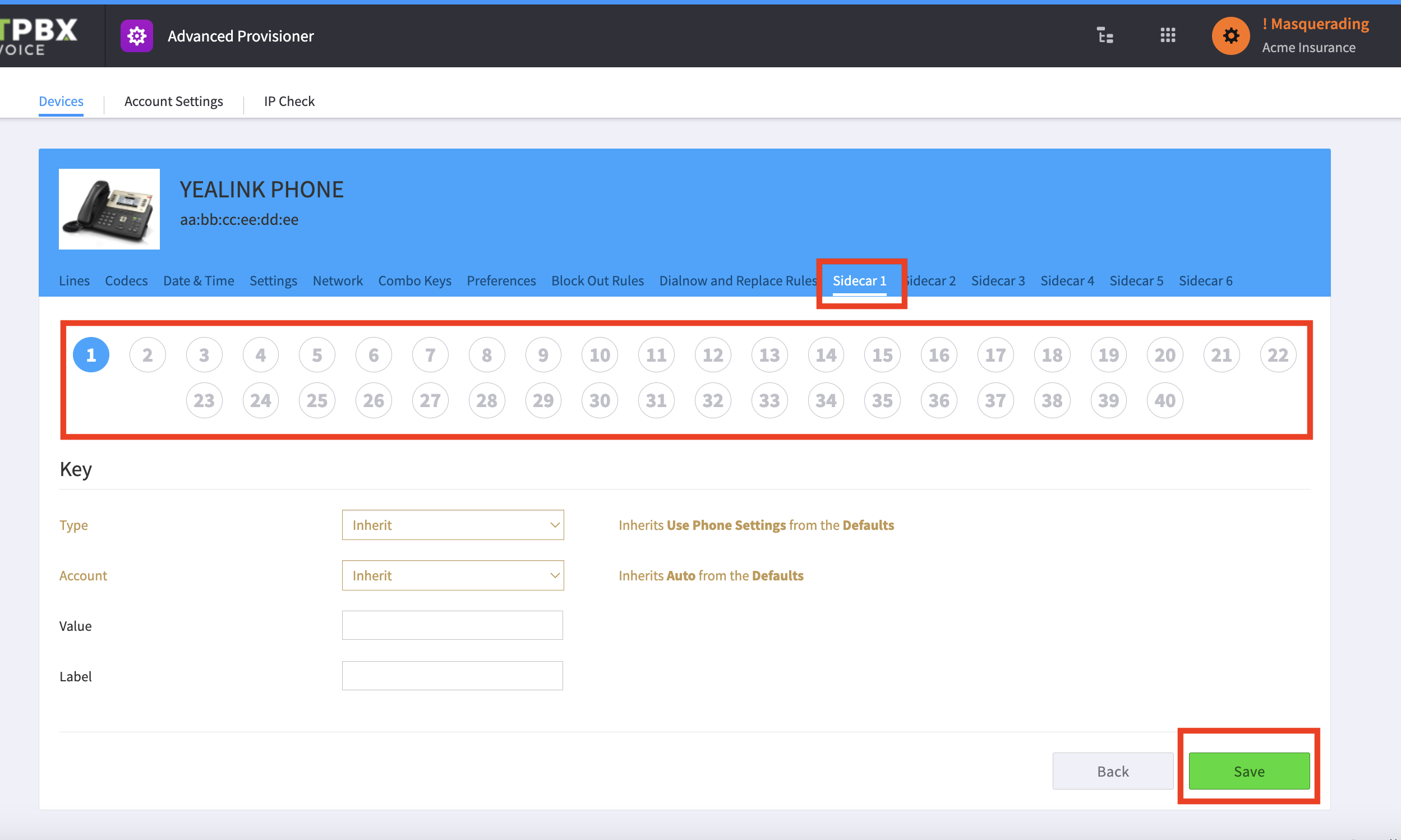
Click on Sidecar 1, or another sidecar tab, and configure your keys
-
Choose Save when you are done. You may need to reboot your phone.