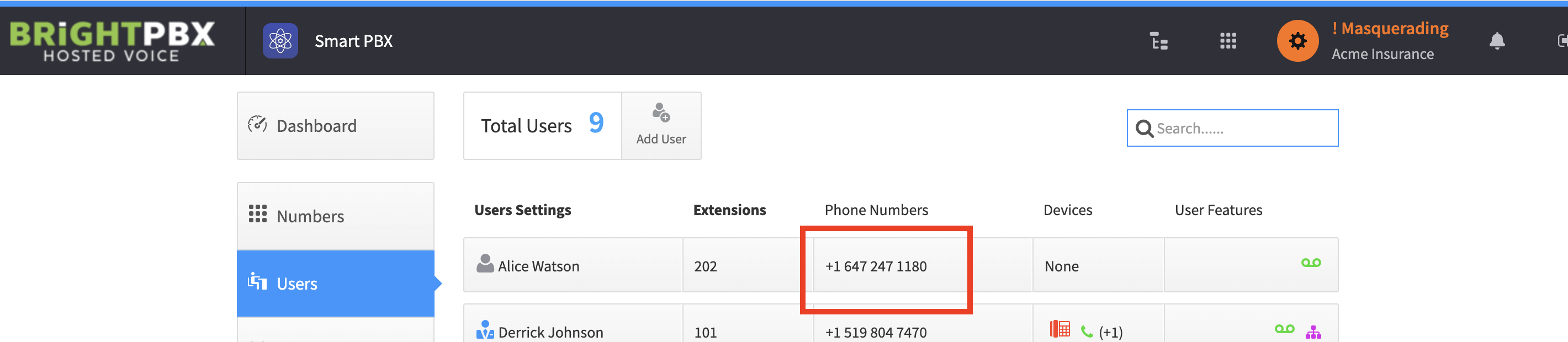
Setting a dedicated DID for a specific user
Setting a dedicated DID for a user allows callers to reach that user directly.
-
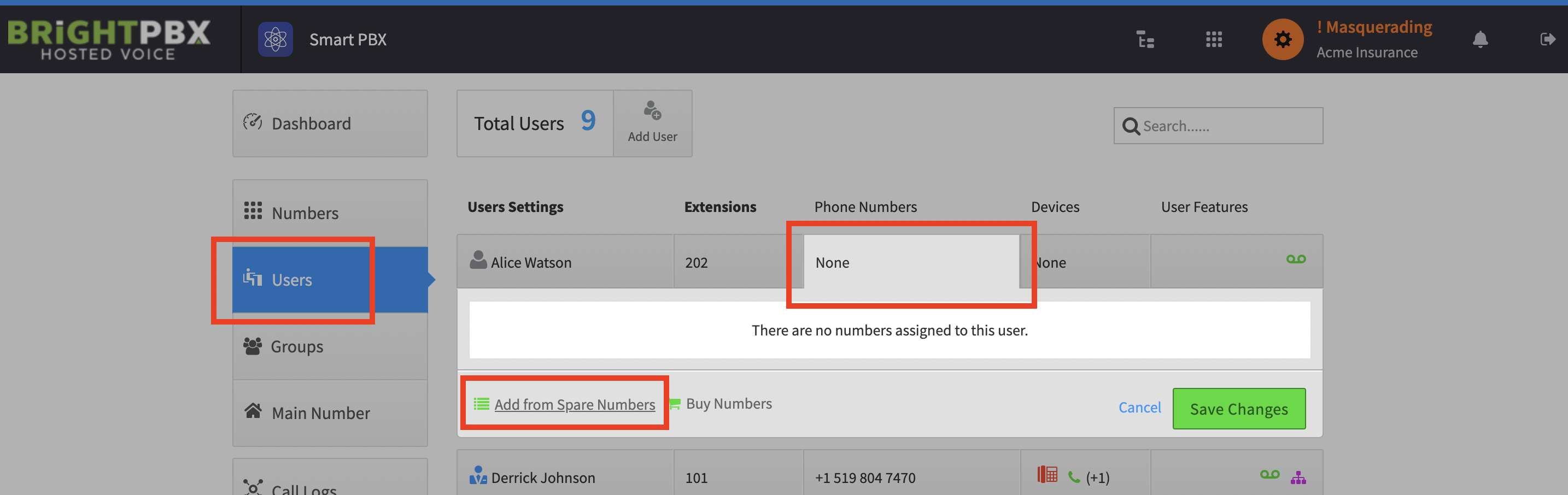
From Smart PBX, choose Users, click the Phone Numbers cell for the user, and click Add from Spare Numbers
-
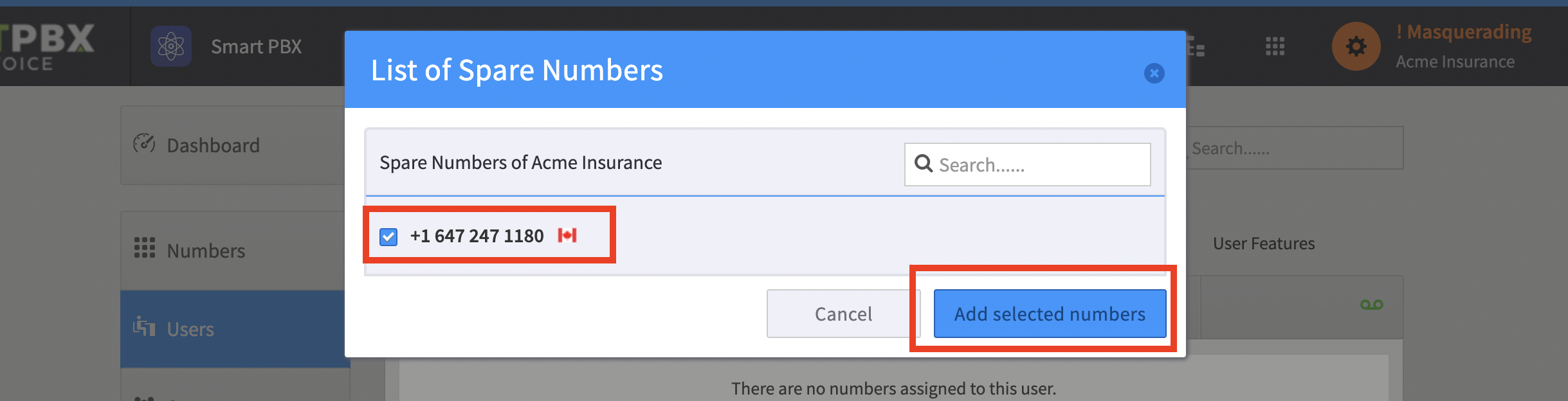
Check the box beside your number, and click Add selected numbers
-
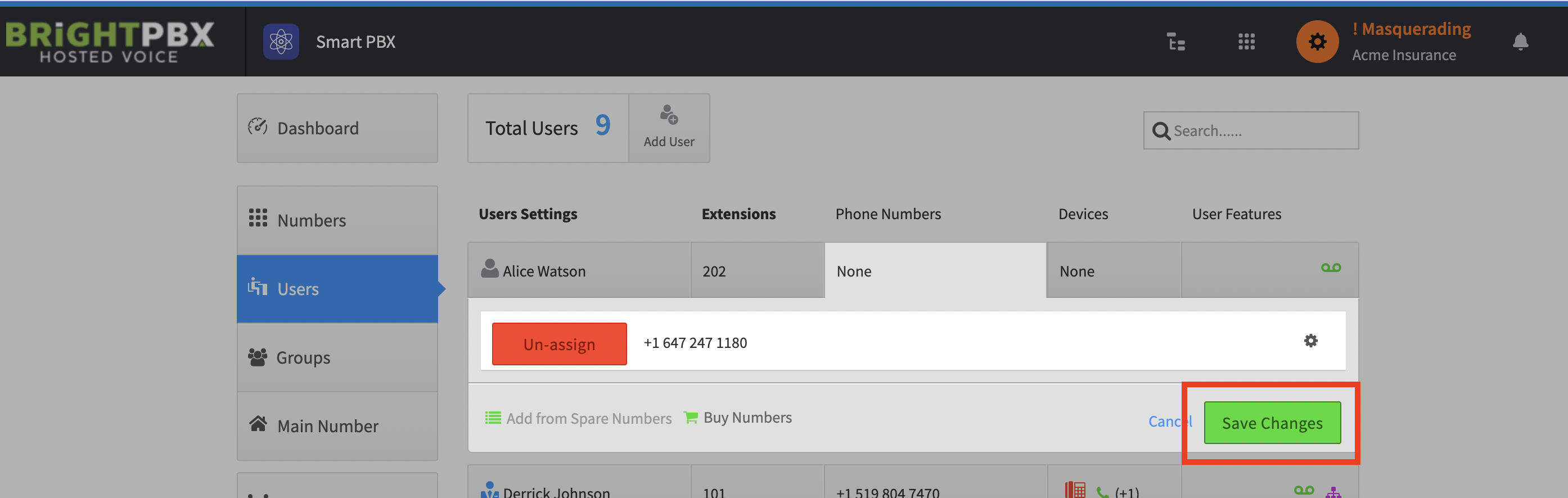
Click Save Changes
If everything completed successfully, you will see the number in the Phone Numbers column. Phoning this number now rings that user directly.