Reporting a call to tech support
The preferred method
Section titled “The preferred method”-
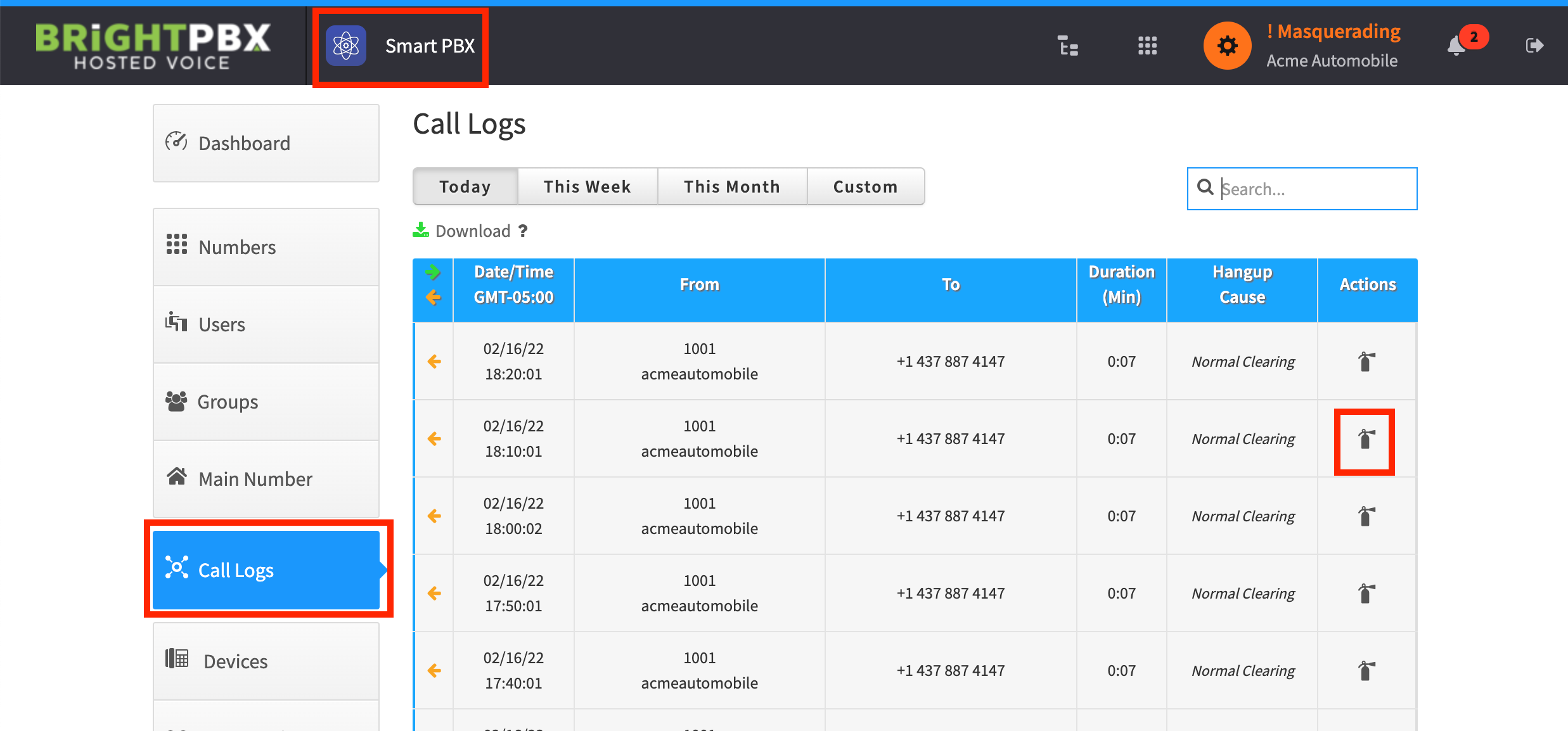
From Smart PBX, choose Call Logs, then click the fire extinguisher icon for the affected call
-
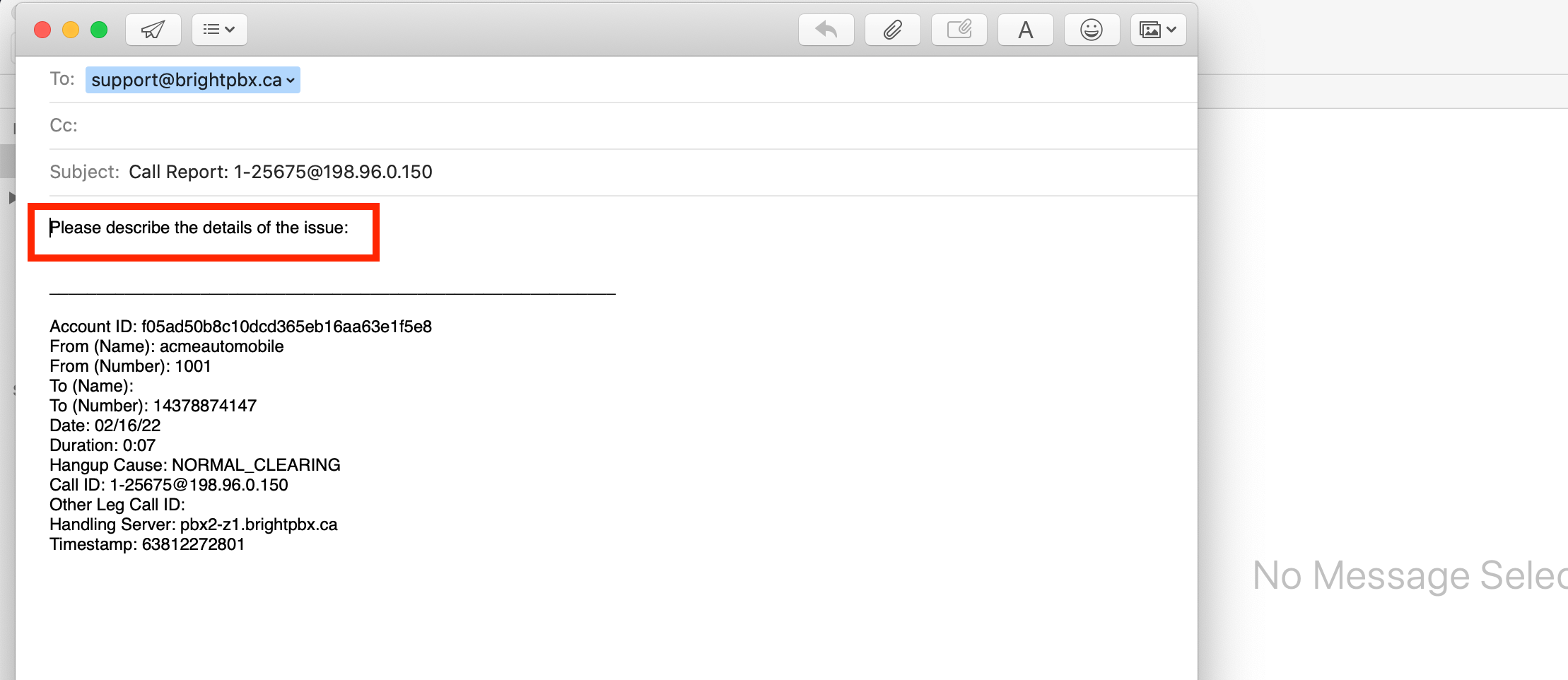
This opens your default email client with the call log attached. At the top of the email, add your own notes describing the issue.
If your browser blocks the email client
Section titled “If your browser blocks the email client”Some browsers will not allow your default email client to open. In that case, copy the stack trace directly.
-
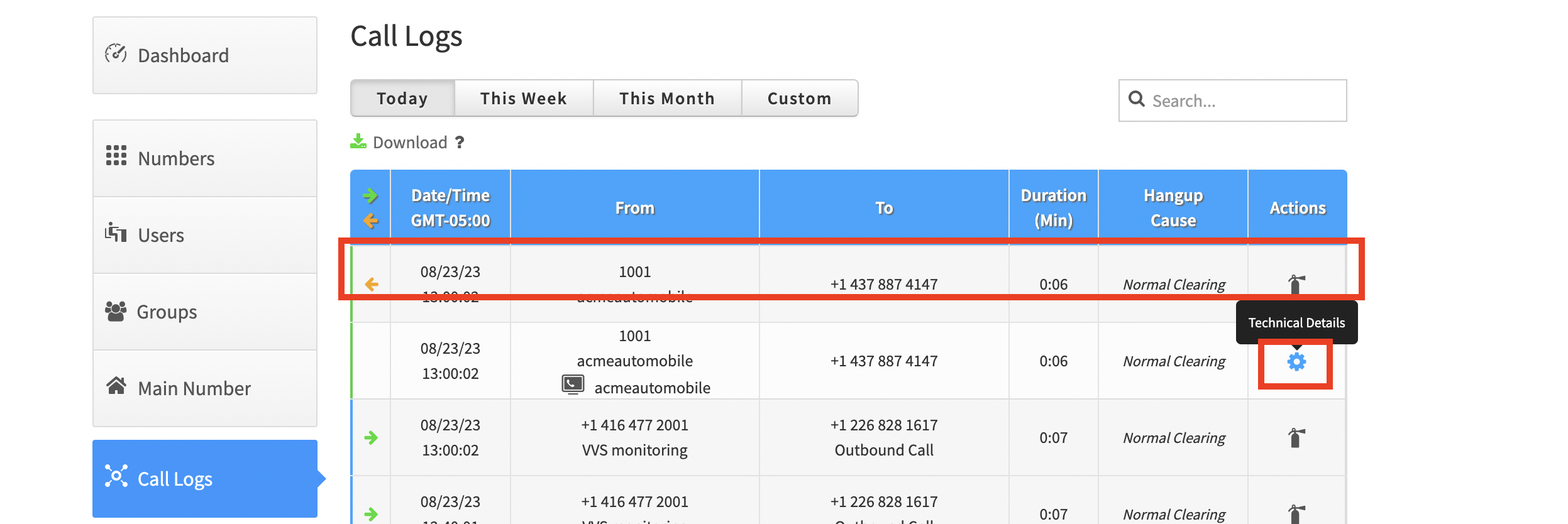
Click the row of the affected call. This expands additional rows corresponding to the inner call channels.
-
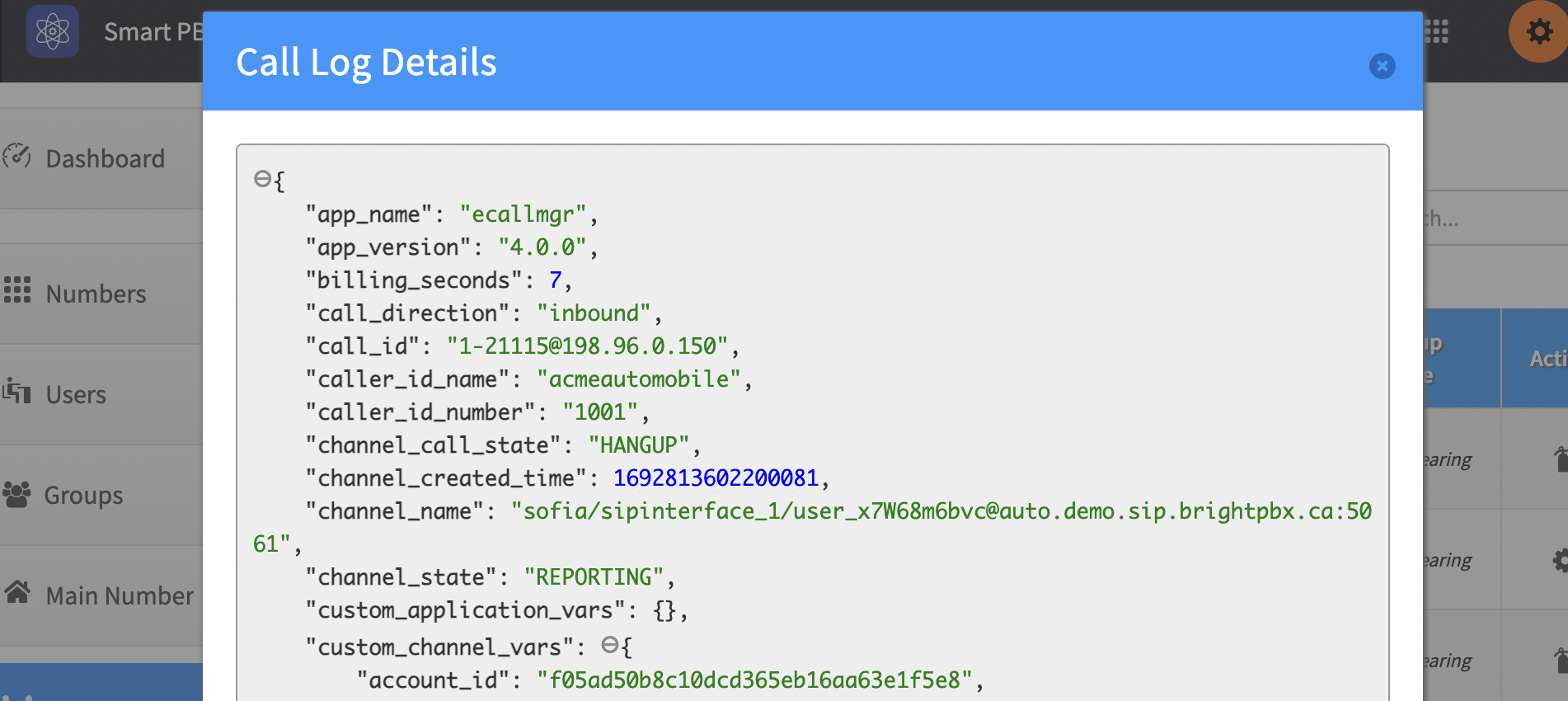
Click the gear icon to reveal technical details
-
Copy the details and send them in an email to Support