Adding a customer
-
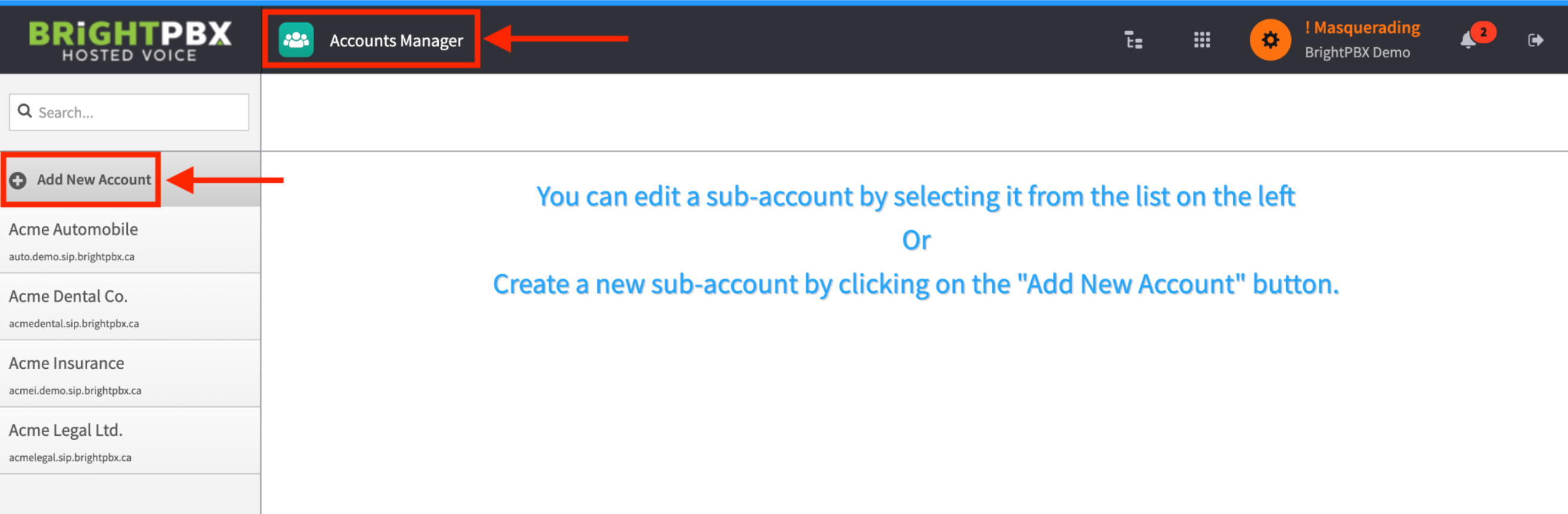
Open the Account Manager app, and choose Add New Account
-
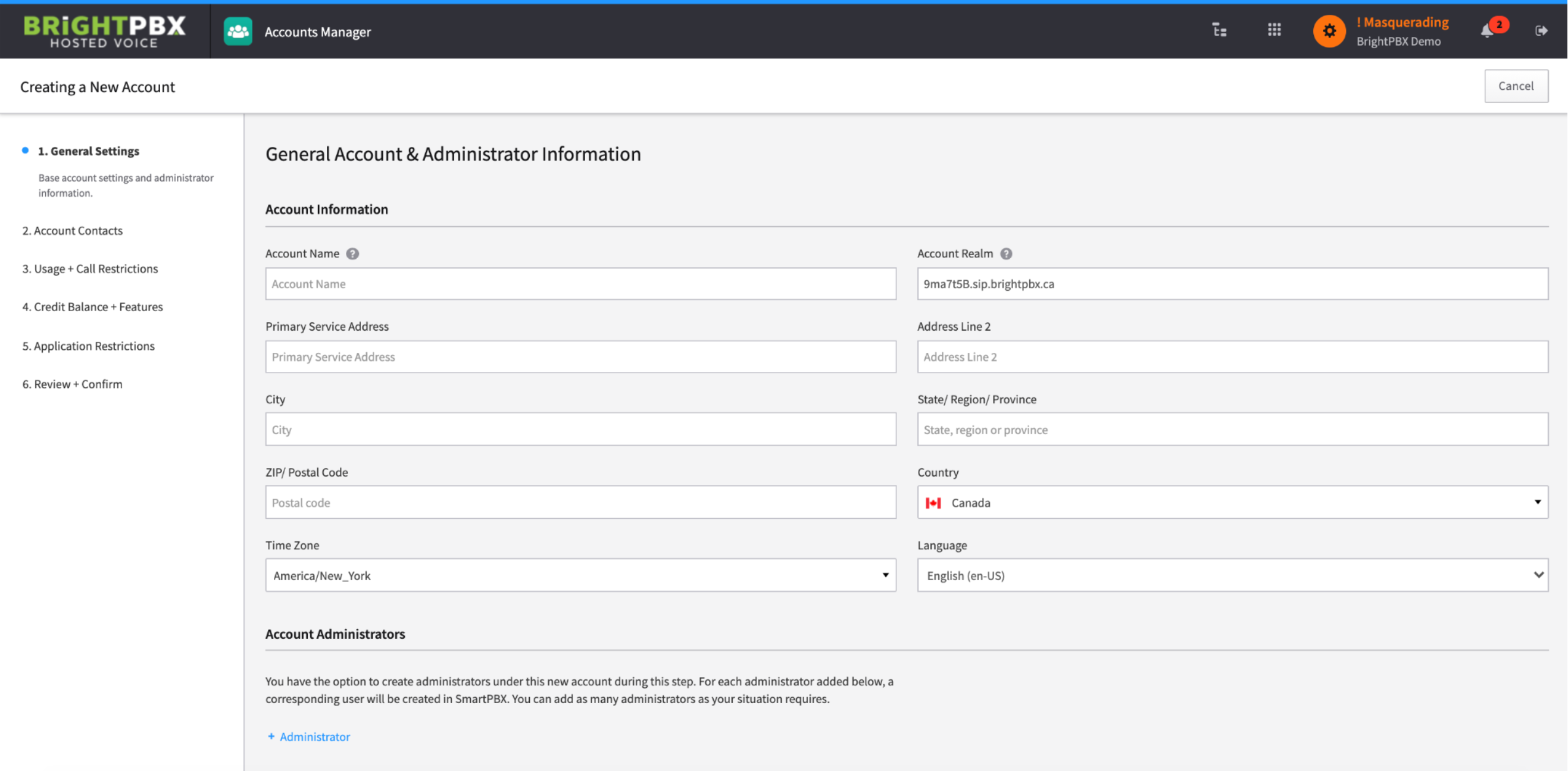
Fill out the customer’s information. Optionally, you may add a separate administrator to the account by clicking the + Administrator link at the bottom
-
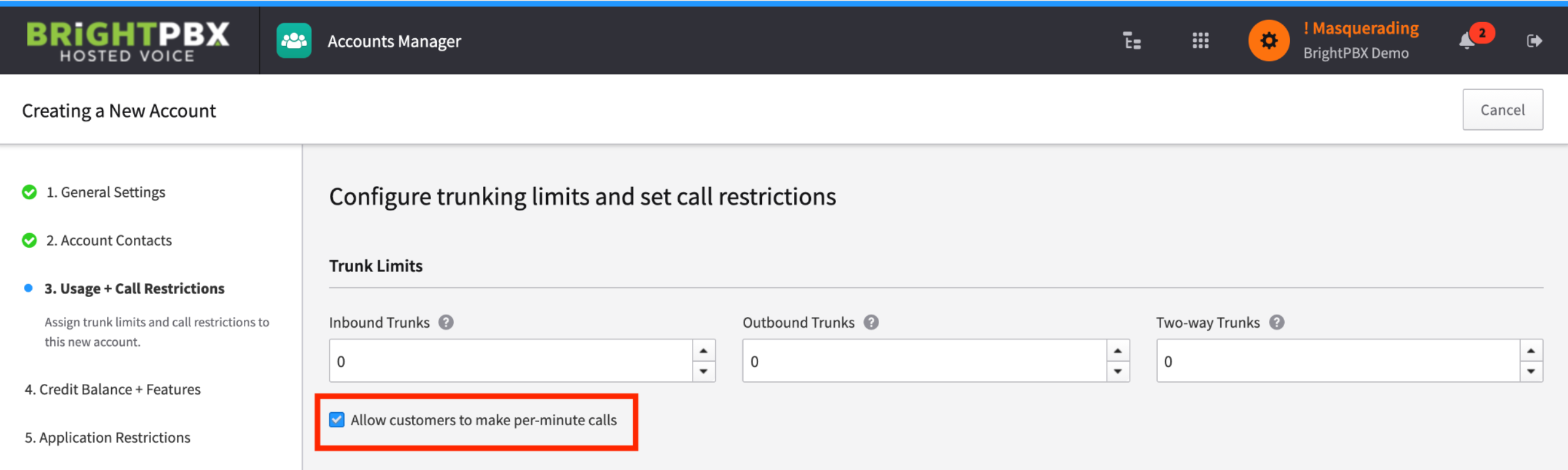
Leave all the Trunk Limits at 0 for unlimited. Check the box Allow customers to make per-minute calls.
-
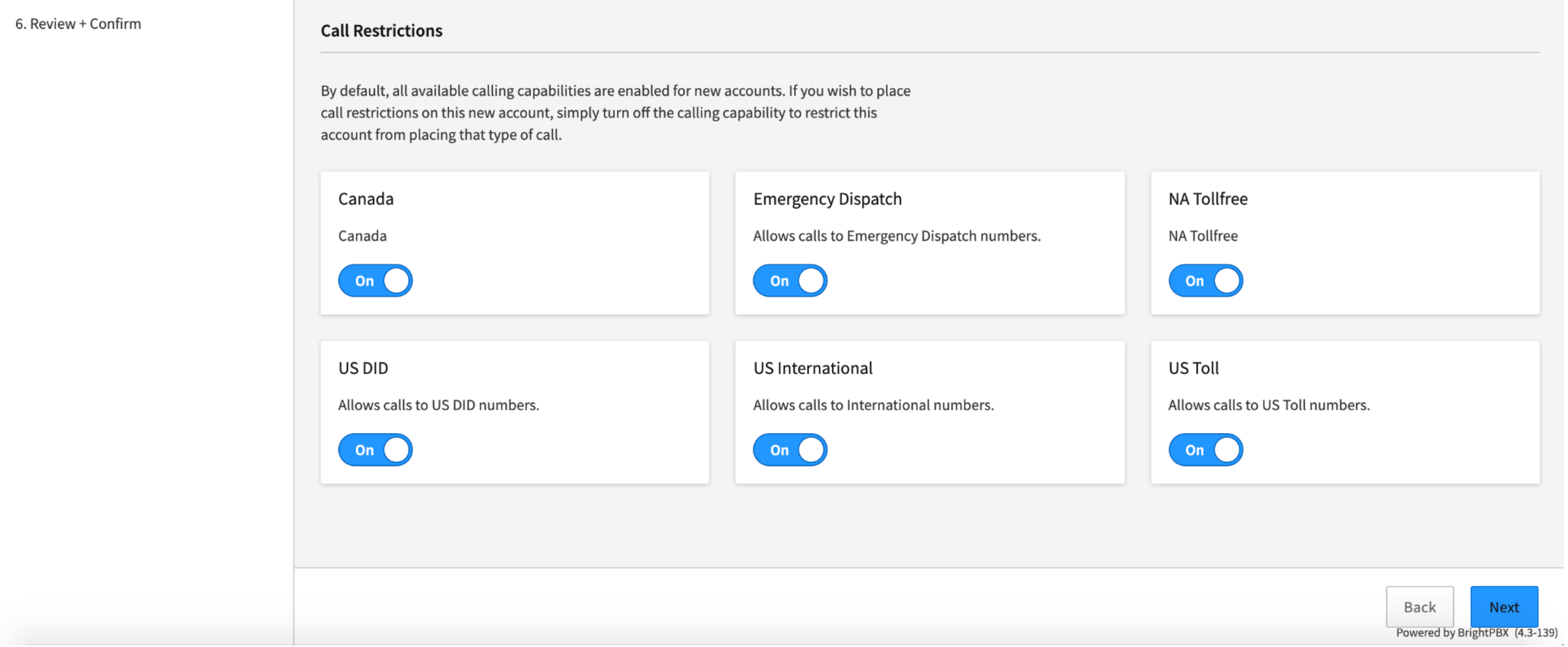
Optionally, you may choose to disable calling to certain areas. If not, click Next
-
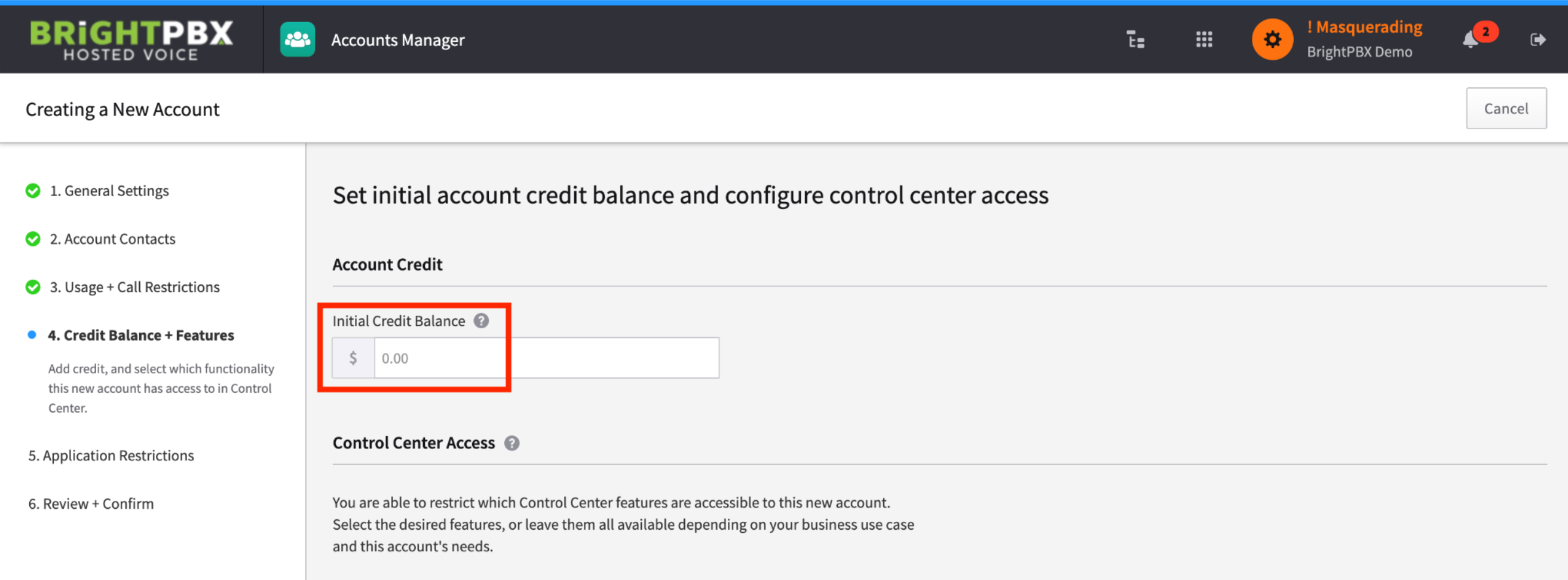
Provide the customer with a balance to allow them to make calls. We recommend setting this to a low but manageable value like $20 to start.
-
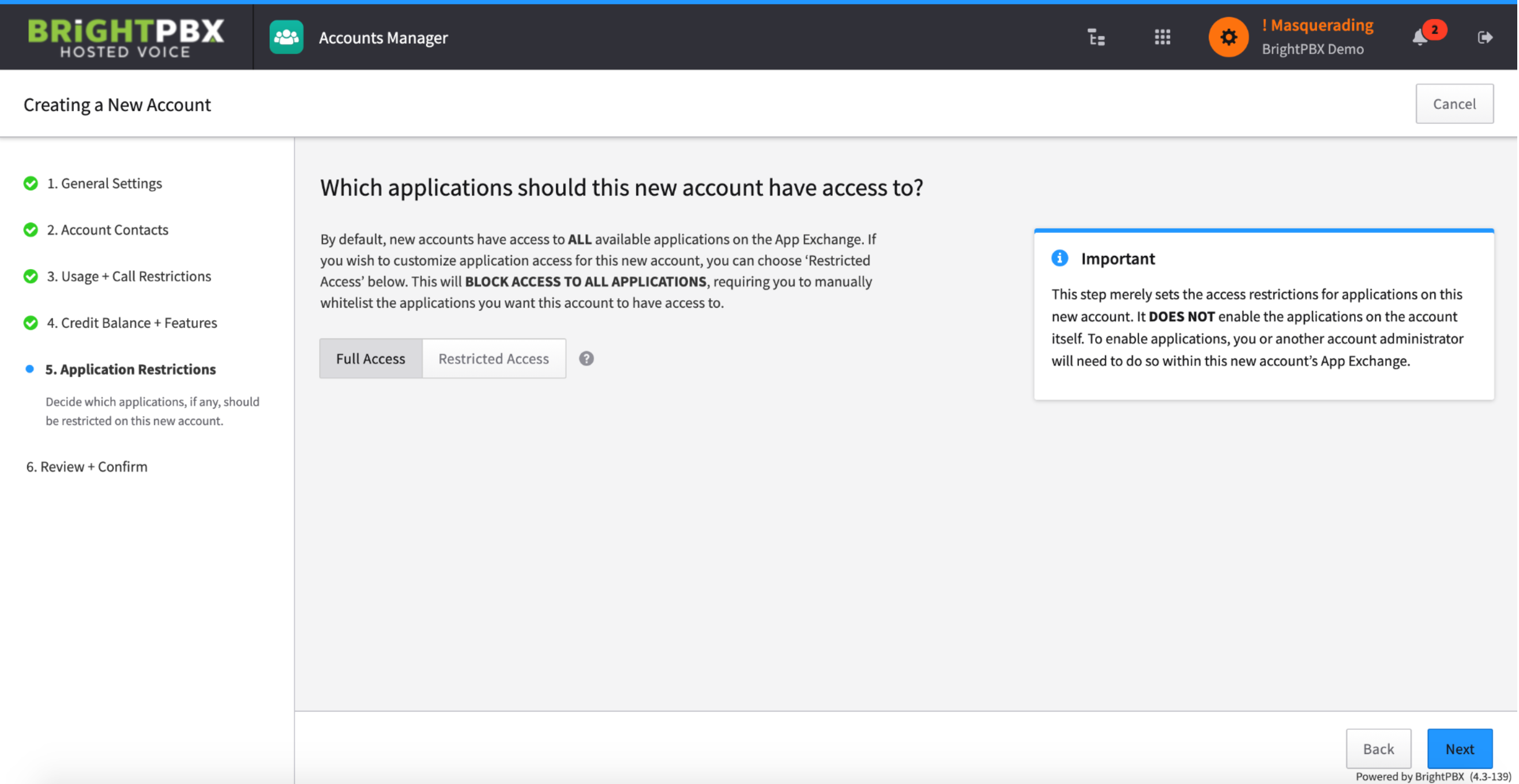
Optionally, you may restrict access to certain apps for this account. If you are not providing access to the end-user for this account, then you can just click Next here
-
Click Create Account to create your new account. It will appear on the left side panel of the Account Manager

-
If you will be adding users and DIDs, make sure to masquerade the account first.