Uploading a custom config file with Advanced Provisioner
Before you begin
Section titled “Before you begin”- We cannot help with config file specifics. You will need to consult your manufacturer or distributor directly.
- Test without your custom config first. If you hit a problem, reproduce it on a device with no custom config before filing a support ticket. It makes troubleshooting much smoother.
- Supported devices are limited. Advanced Provisioner currently supports custom configuration files for Yealink (firmware v81+) and Polycom only. Other models are not supported, and we have no ETA for adding them.
Building and uploading the file
Section titled “Building and uploading the file”-
Obtain a copy of the base configuration file for your device
-
Modify the config file so that it only contains the specific elements you wish to modify
-
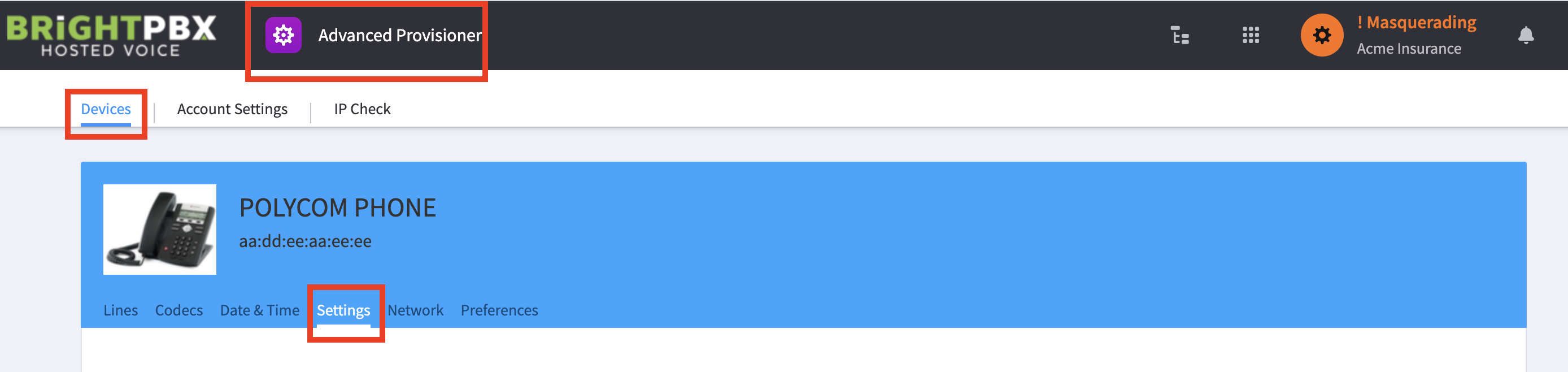
Open Advanced Provisioner, and choose Devices > Settings
-
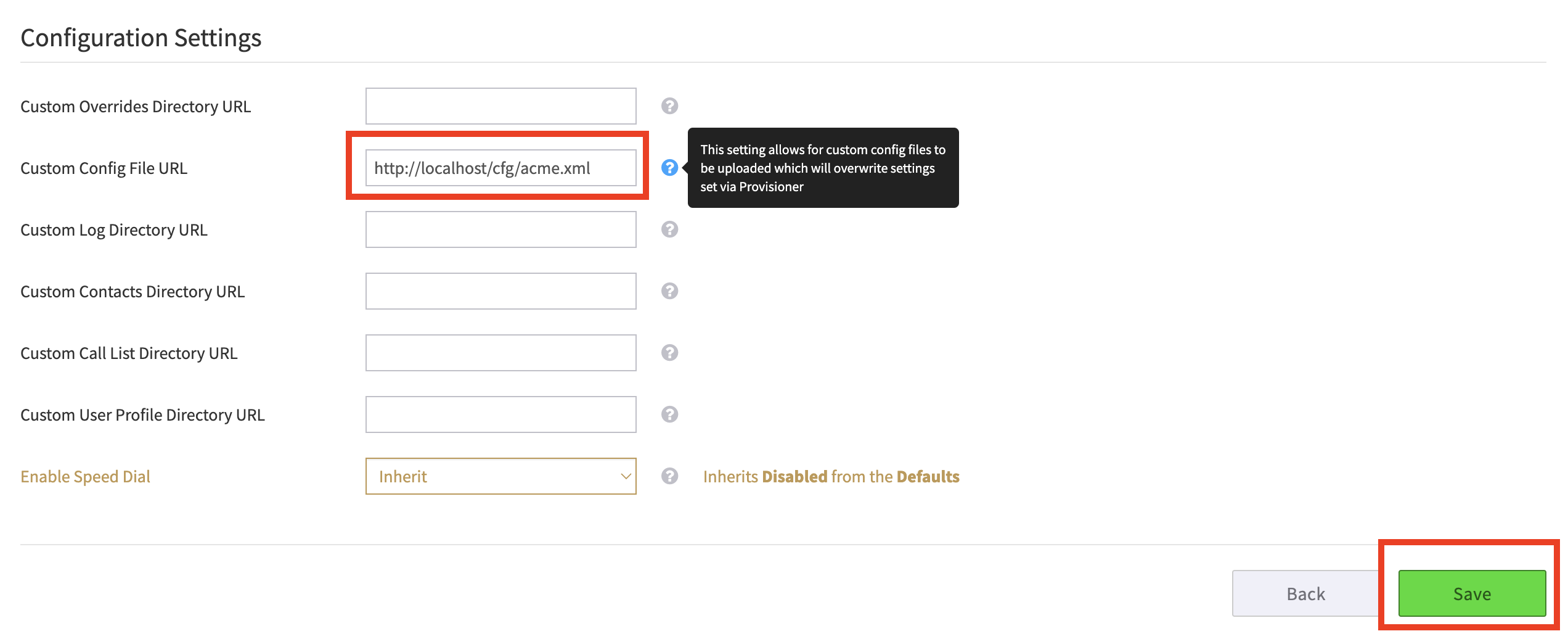
Scroll down to Configuration Settings, and update Custom Config File URL with the URL of your config file on your local intranet, somewhere your phone can reach it
-
Choose Save when you are done
-
Reboot your device