Fixing a rejected port
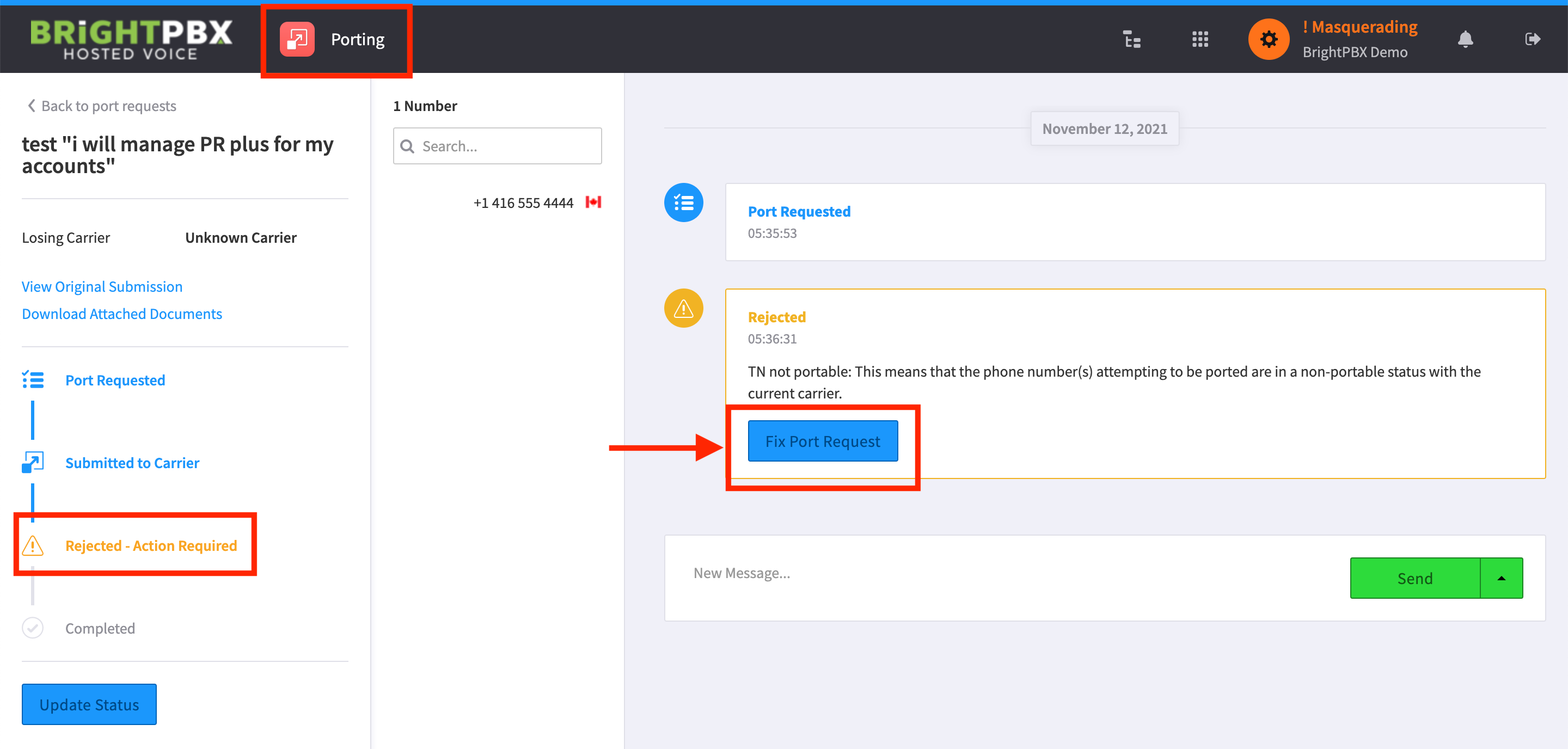
First, read why a port was rejected to understand the reason. Then follow these steps to fix the port in our portal.
-
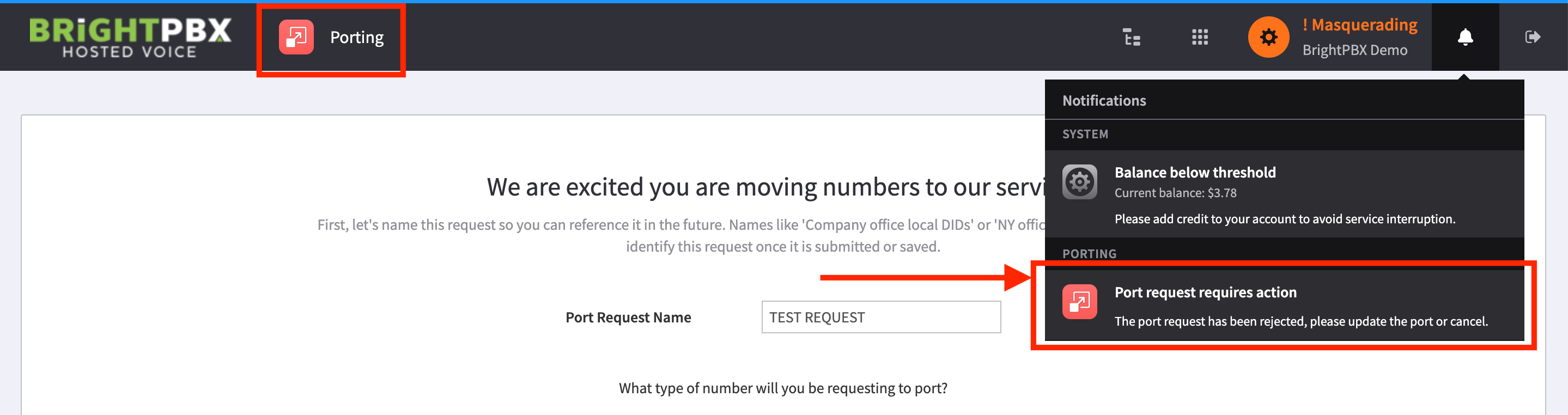
The bell icon in the top-right corner provides notifications, including port rejections. Keep an eye out for it.
-
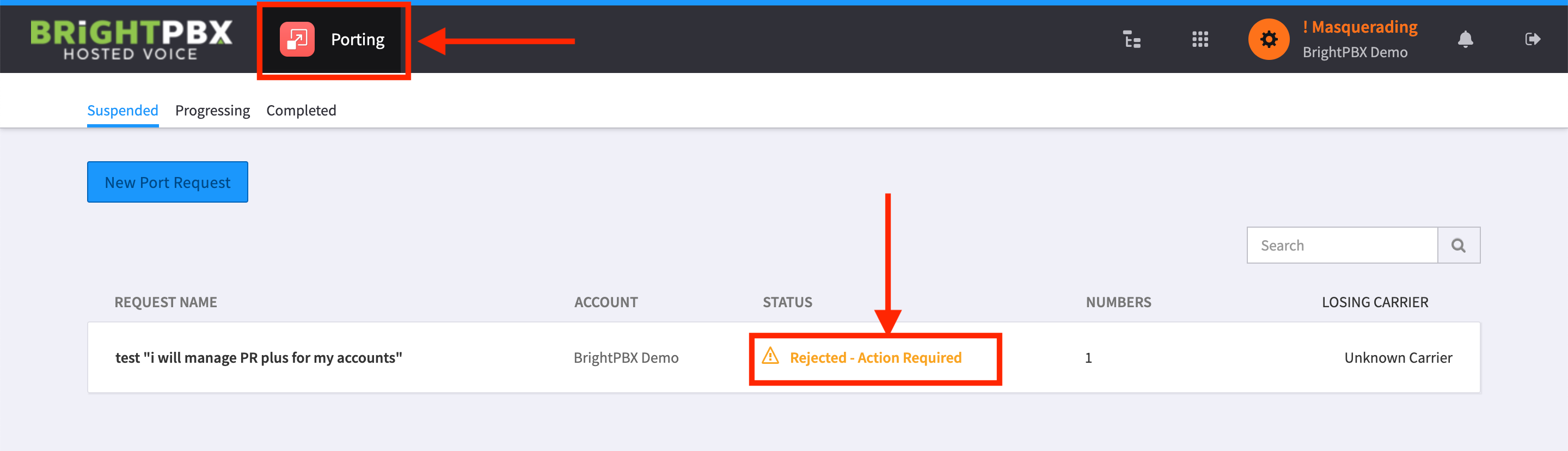
To see your rejections, open the Porting app and click the row corresponding to the port rejection
-
Click Fix port request and follow through each step to resubmit your request